Jobber links a client to a QuickBooks Online customer by name. When two records carry the same name, or one person ends up with two slightly different names, the sync either stops with a “Client already exists in QuickBooks” error or quietly builds a second customer. The fix runs in a fixed order: find which side holds the duplicate, merge it in Jobber while keeping the record that already syncs, then merge or deactivate the leftover customer in QuickBooks. Change the order and the next sync can bring the duplicate back.
How this guide was made: it is research, not a hands-on cleanup. We read Jobber’s help articles on both QuickBooks integrations, its merge tool and its sync errors, a long Jobber Community thread on duplicates, and Jobber’s pricing page, on October 24, 2026. We did not run a merge in a live account for this piece. If you are still deciding whether the plan that includes QuickBooks sync is worth it, our Jobber pricing breakdown covers every tier.
Why the duplicates happen: the sync matches on names
In the new QuickBooks integration, Jobber maps the client’s name in Jobber to the customer’s display name in QuickBooks. QuickBooks needs every display name to be unique. So the name is doing two jobs at once: it is how the two apps recognise the same person, and it is the thing QuickBooks refuses to repeat.
That produces two kinds of trouble:
- The same name twice. “Mike Ross” exists in QuickBooks from before you connected, or he is already linked to another Jobber client. Jobber cannot reuse the name, so the client fails to sync.
- The same person under two names. “Mike Ross” and “Michael Ross”, or a property manager entered once under her own name and once under the company. Nothing matches, so nothing errors, and you get two customers with split invoice history.
The second kind is the costly one because nothing warns you. You find it when a customer statement looks wrong or your accountant asks why one client has two balances.
Which side made the duplicate? Read the symptom first
Before merging anything, work out where the extra record lives. The table pairs what you see with the usual cause.
| What you see | Likely cause | Where to fix it |
|---|---|---|
| Sync error “Client already exists in QuickBooks” | A customer with that exact name is already in QuickBooks | Rename in Jobber or QuickBooks, or merge in QuickBooks if it is the same person |
| “We found a client with this name in QuickBooks, but it’s already mapped to a client in Jobber” | Two Jobber clients share one name; only one can hold the link | Merge the two clients in Jobber |
| Two customers in QuickBooks, both with recent invoices | The same person was entered twice in Jobber under different spellings | Merge in Jobber first, then in QuickBooks |
| Duplicate appears again after you deleted it | The record was removed on one side only, and the next sync recreated it | Merge or archive on both sides |
| Several matches during the first import | QuickBooks already had near-identical customers | Pick the right client in the import’s duplicate screen |
One more check: invoices and payments for a client do not sync while that client has a sync error. If a batch of invoices is missing from QuickBooks, a single duplicate client is often behind it.
Legacy or new integration? The fix depends on it
Jobber runs two QuickBooks Online integrations, and the direction of the sync changes what “fix it in QuickBooks” means. Look under Settings, Connected Apps to see which one you have.
| Item | Legacy integration | New integration |
|---|---|---|
| Direction for clients | Two apps exchanging data when you run a sync | One way, Jobber to QuickBooks, in real time; Jobber is the source of truth |
| How you sync | Manual sync after changes | Automatic; no “Sync now” needed |
| Editing a client in QuickBooks | Billing address of a synced client can only be changed in QuickBooks | Make edits in Jobber, or QuickBooks changes can be overwritten |
| Deleting a phone or email | Not covered in Jobber’s legacy help | Jobber can add or change fields in QuickBooks but not delete them; remove it on both sides |
| Going back | Can migrate to the new integration | No return to legacy after migrating |
The practical rule for the new integration: clean the client in Jobber and let the sync carry it. Hand edits in QuickBooks are only for the leftover customer that Jobber no longer points at.
Fix order, step by step
- Find the record that already syncs. In the legacy integration it carries the sync icon. Jobber’s own advice there is to remove the duplicate that has no sync icon, because only one of two same-named clients can stay in sync.
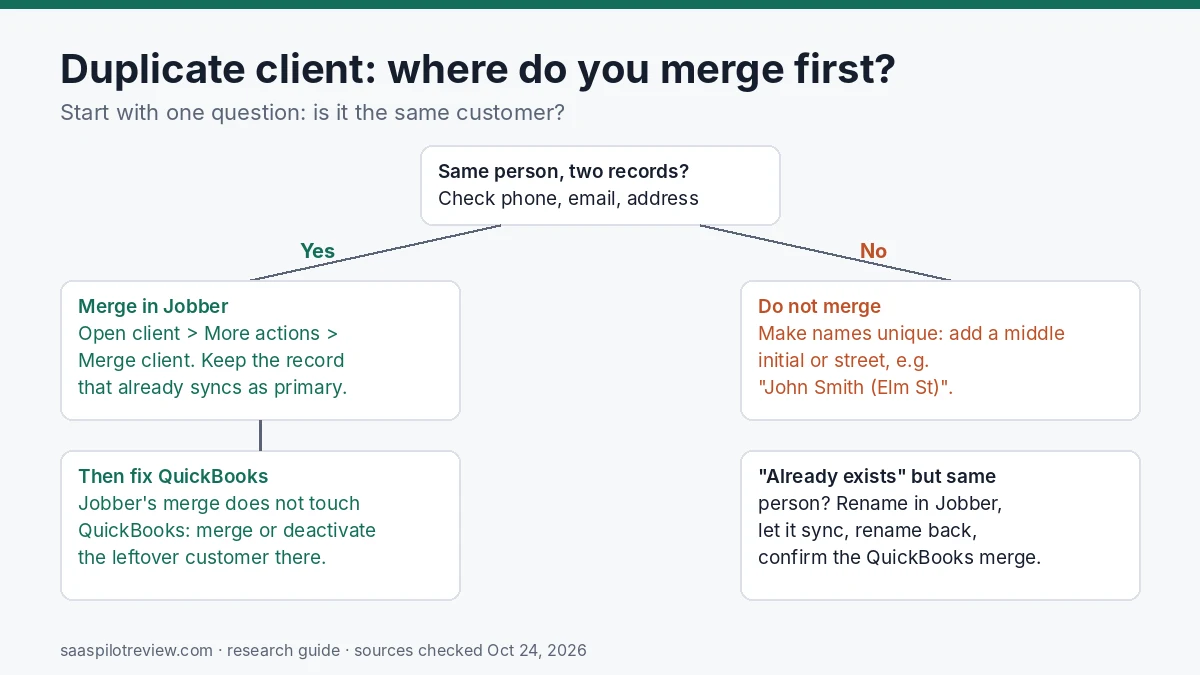
- Merge the clients in Jobber. Open the client, then More actions, then Merge client, and pick the second record. Make the synced record the primary. If the other one has a card on file, think again: Jobber says a card on file never transfers in a merge, so you may need to collect it again.
- Check the result. Jobs, visits, quotes, requests, invoices, properties, notes and tags move to the primary. Where both records have a value, the primary’s value wins. Duplicate properties can be merged afterwards.
- Deal with the leftover customer in QuickBooks. Jobber’s merge does not touch QuickBooks. If the second record had synced, its customer is still there. Merge it into the surviving customer or make it inactive, or a later sync may recreate the client.
- Resync the invoices that were blocked. Once the client is clean, its invoices and payments can sync. In the legacy integration, run a manual sync; you can push a single invoice with More Actions, Push to QuickBooks.
Two limits to plan around. You cannot undo a merge in Jobber, so read the confirmation screen before you confirm. And merging only works in Jobber Online in a browser, not in the Jobber app, and not while a QuickBooks sync is running for either client.
When it really is the same person in QuickBooks
If the error says the name already exists and both records are the same customer, Jobber’s help describes a workaround that ends with QuickBooks doing the merge:
- Rename the client in Jobber to something temporary, such as “John Smith 1”.
- Wait until that client syncs and appears in QuickBooks.
- Change the name in Jobber back to the original.
- When QuickBooks asks whether to merge the two customers, confirm.
Treat a QuickBooks merge as permanent too, and ask your bookkeeper first if either customer has open balances or sales tax history. If the two records are different people who share a name, do not merge. Add a middle initial or a street name, such as “John Smith (Elm St)”, so QuickBooks sees two unique names.
Cleaning up during the first import
When you connect the new integration, you can import clients from QuickBooks once. This is where old QuickBooks duplicates surface. Jobber matches company customers by company name. For people, it matches on first and last name, then checks the email: a matching email updates the existing client, a different email creates a new one.
When more than one record matches, Jobber shows a duplicate screen with each match’s name, email and date of last activity. Pick the Jobber client to map to and click Retry, or choose Don’t Import. Then archive or delete the extra matches so they do not get used for new jobs.
Worth doing before you connect: tidy the QuickBooks customer list. Make sure company customers have the company name filled in, and that people who are the same customer share one email. It is faster than sorting matches one by one afterwards.
Stop new duplicates at the source
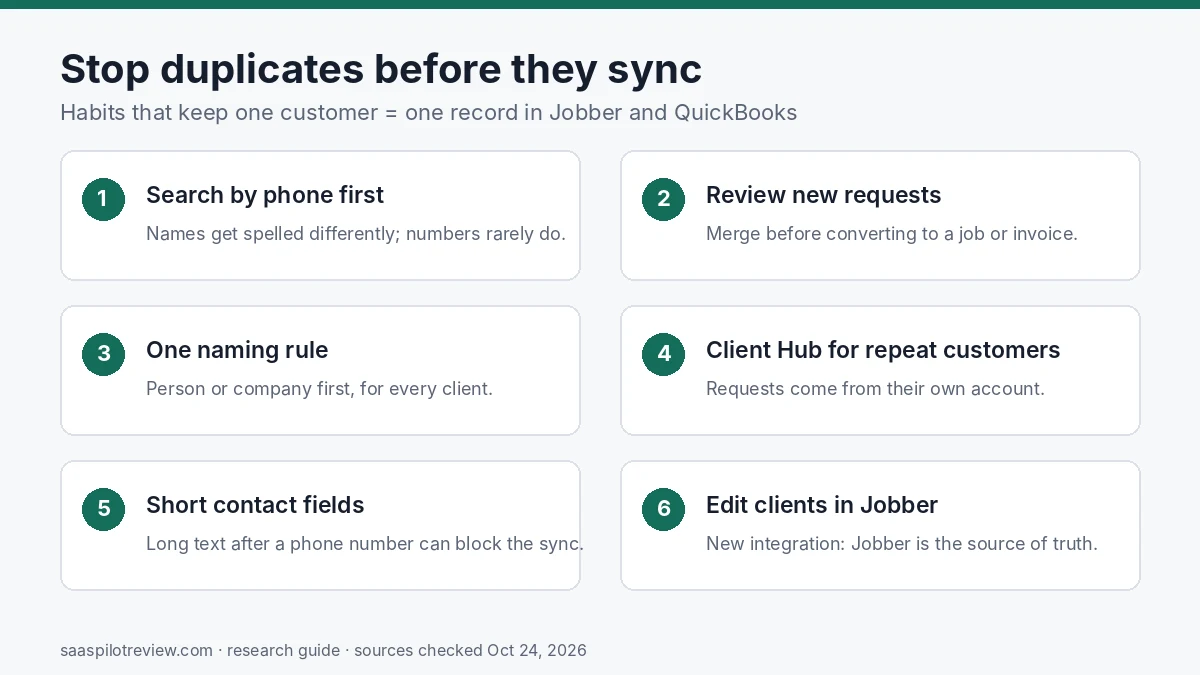
In the Jobber Community thread on this problem, the most common source is the online request form. A returning customer types “NJ” instead of “New Jersey”, and a new client appears, often noticed only after the job is invoiced and paid. The second source is the office: someone creates a new client during a phone call instead of searching first. A few habits cut both:
- Search by phone number before creating a client. Names get spelled differently; numbers rarely do.
- Review new requests before converting them to quotes or jobs, and merge then, before any invoice syncs.
- Offer Client Hub to repeat customers. Jobber support suggested this in the thread so returning customers send requests from their own account. The thread also notes the downside: older customers and one-off clients may not want another login.
- Pick one naming rule. Person or company first, for every client. Property managers are the classic case: one company, several contacts, the same addresses.
- Keep long text out of contact fields. Jobber allows more characters than QuickBooks, and notes typed after a phone number are a common cause of the “Too many characters” error that blocks a client.
Which Jobber plans include QuickBooks Online sync
Jobber’s pricing page lists “Sync with QuickBooks Online” on Connect, and Grow and Plus include all Connect features. Core does not list it. The new integration is for the US and Canada, works with QuickBooks Online Simple Start, Essentials, Plus and Advanced in the US, and is rolling out to accounts gradually.
| Plan | QuickBooks Online sync | Starting price, billed monthly | Billed yearly (regular rate) |
|---|---|---|---|
| Core (1 user) | Not listed | $49/mo | $29/mo |
| Connect (1 user) | Yes | $139/mo | $99/mo |
| Grow (1 user) | Yes | $199/mo | $149/mo |
| Plus (5 users) | Yes | $499/mo | $399/mo |
Prices checked October 24, 2026, on Jobber’s US pricing page. Yearly billing shows a lower first-year promotional rate; the table uses the regular rate. Extra users are $29 a month each. For 5, 10 and 15-user prices, see the Jobber pricing breakdown linked at the top of this guide. Housecall Pro puts its QuickBooks Online sync on the Essentials plan and up; our Housecall Pro vs Jobber comparison covers how the two differ beyond accounting.
Still choosing a field service app? Our best field service software for small business roundup compares the main options, and more guides are in the field service software hub. See how we research and test for how guides like this are put together.
Sources
- Jobber Help: how items sync between Jobber and QuickBooks Online (new integration)
- Jobber Help: common QuickBooks sync errors (new integration)
- Jobber Help: QuickBooks Online sync error messages (legacy)
- Jobber Help: merge duplicate clients
- Jobber Help: migrate to the new QuickBooks integration
- Jobber Help: connect Jobber and QuickBooks Online (new integration)
- Jobber Help: QuickBooks integration FAQs (new integration)
- Jobber Help: QuickBooks integration FAQs (legacy)
- Jobber Community: preventing or merging duplicate clients when syncing with QuickBooks
- Jobber pricing plans