To export clients from Jobber, sign in on the web, open Clients, click More Actions, choose Export Clients, pick CSV and click Export. Jobber emails the file to you. That gets your client list out, but a full move to another app also needs your invoices, quotes and jobs, which come out through separate report exports, plus PDFs of anything you may need to show a customer later. If you are leaving because of the bill, our breakdown of who pays more after Jobber’s 2026 price change is worth a read first, and if Housecall Pro is the likely destination, see how Housecall Pro and Jobber compare on plans and price.
How we put this together: researched from vendor pages, not hands-on tested. We read Jobber’s help articles on client exports, reports, cancelling and closing an account, plus the import help pages for Housecall Pro and QuickBooks Online, on November 13, 2026. We did not run an export from a live Jobber account. Our research and testing methods explain the difference.
How to export clients from Jobber: the exact menu path
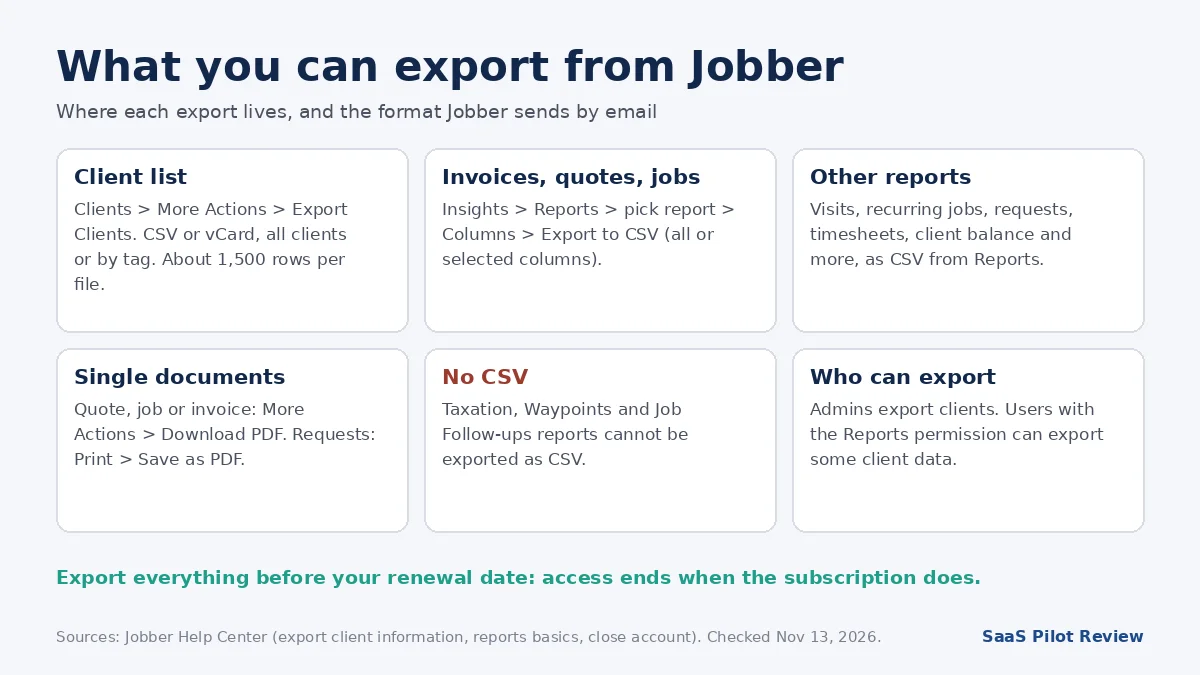
The client export lives on the Clients page, not in Reports. Jobber’s export client information article gives these steps:
- Click Clients in the side navigation.
- Click More Actions in the top right corner.
- Select Export Clients.
- Under Choose export format, pick CSV (for another app or a spreadsheet) or vCard (for a phone’s contacts).
- Click Export. Jobber emails you the file when it is ready.
Four details from the same article matter when you are moving apps:
- It comes in chunks. CSV exports hold up to about 1,500 rows. Jobber says that with more than 1,499 clients you get several files attached to the email. Combine them in a spreadsheet before you import anywhere.
- Tag filters narrow it. In the export pop-up you can click Select tags. With more than one tag selected, only clients that have every selected tag are included. For a full move, leave tags empty.
- Admins only, mostly. Only admin users can import and export clients. Team members with the Reports permission can export some client data.
- Plan-dependent. Jobber lists client exporting as available on “select plans” without naming them on that page. Check yours under the gear icon, then Account and Billing, and compare with our Jobber plan-by-plan price list.
Jobber says the export includes tags, property addresses, contact information and custom fields. It does not publish a column list for the export itself, so open the file and check it against the next section before you cancel anything.
Every other Jobber export a switch needs
Work and money history does not ride along with the client file. It comes out of the reports area, which Jobber’s reports basics article says you reach on Jobber.com (not the mobile app) under Insights > Reports. Each report has a Columns button; the CSV can include all columns or only the ones on screen, and it is emailed to your login address.
| What you need | Where in Jobber | Format | Note from Jobber’s help |
|---|---|---|---|
| Client list | Clients > More Actions > Export Clients | CSV or vCard | Split into files of about 1,500 rows |
| Invoices | Insights > Reports > Financial reports > Invoices | CSV | Has line items, balance, tax, deposit and paid dates |
| Quotes | Insights > Reports > Work reports > Quotes | CSV | Has line items, status, deposits and job numbers |
| One-off jobs | Insights > Reports > Work reports > One-off jobs | CSV | On-screen sorting is not kept in the file |
| Recurring jobs, visits, requests, timesheets | Insights > Reports > Work reports | CSV | Listed as separate reports |
| Client balances | Insights > Reports > Financial reports > Client balance summary | CSV | Useful for carrying open balances |
| Single quote, job or invoice | Open it > More Actions > Download PDF | From the close-account article | |
| A request | Open it > More Actions > Print > Save as PDF | From the close-account article |
Set the date filter to All time (or a custom range covering your whole history) on each report, so the file is not limited to recent months. If you would rather not run them by hand, Jobber points to a Report Scheduler app in its App Marketplace that emails reports on a schedule.
The columns worth keeping, and what they become elsewhere
When you open the CSVs, these are the fields to protect. Everything else can usually be dropped.
From the client file: name (first, last or company), email, phone numbers, the property (service) address, the billing address, tags, lead source and any custom fields. Jobber’s import clients article also refers to a J_ID column on files exported from Jobber, a two-number ID such as 3434_5434. Keep it: it is the one value that tells two clients with the same name apart. Note that Jobber handles multiple properties as one row per property with the client details repeated, so a client with three properties may show up three times.
From the invoices report: invoice number, client name and email, issued, due and paid dates, status, line items, total, balance, tax and deposit, according to Jobber’s invoices report article. From the quotes report: quote number, status, line items, totals, deposits and the linked job numbers (quotes report). From the one-off jobs report: job number, title, schedule start and closed dates, totals, line items and the quote and invoice numbers tied to the job (one-off jobs report). Job, quote and invoice numbers are the thread that lets you rebuild history later, so keep them in every file.
What does not come out of Jobber as a spreadsheet
Some things only leave as PDFs, and a few do not leave at all in a form another app can read. Here is what the sources say, and where they are silent:
- Three reports cannot be exported. Jobber’s reports article says the Taxation, Waypoints and Job Follow-ups reports are not CSV formats. Screenshot or print anything you need from them.
- Saved cards stay behind. The Clients report only shows a “payment method on file” column with the card’s expiry date, not card details (clients report). Rebolt’s Jobber migration guide likewise says clients have to re-enter payment details after a move. Plan for customers on autopay to be asked for a card again.
- Paid status may not carry over. The same Rebolt guide says invoices that were already paid arrive in Rebolt as unpaid and have to be marked paid by hand. Other apps may behave differently, so test with a few invoices.
- Photos, attachments and internal notes: none of the Jobber help pages we read describe a bulk export for them. Jobber’s client import accepts a “Note” column, but the export article does not say notes are included. Treat these as not exported until you see them in your own file, and ask Jobber support before your access ends.
- Single documents are PDF only. Quotes, jobs and invoices you want as customer-facing copies come out one at a time via Download PDF.
Field mapping checklist: Jobber CSV into Housecall Pro or QuickBooks Online
Both destinations let you match your column headers to their fields during import, so you do not need their template. The table pairs the Jobber client columns with the target fields named in Housecall Pro’s prepare-to-import guide and the rules in QuickBooks’ customer import help.
| Jobber client column | Housecall Pro field | QuickBooks Online |
|---|---|---|
| J_ID | Customer ID (unique, up to 191 characters) | No Match (keep it in your master spreadsheet) |
| First / last name, company | First name, Last name, Company, Display name; needs a name, company or email | Name must be unique; no colons or quotation marks |
| Email (can hold several) | Emails, comma-separated | Only one email per contact is imported |
| Phone numbers | Mobile, home, work, additional; 10 or 11 digits each | Match in the field dropdown |
| Property address | Service address (must be a real US ZIP) | Address maps to billing address only |
| Billing address | Billing address | Billing address |
| Tags | Tags, comma-separated | No Match |
| Lead source | Lead source (one per customer) | No Match |
| Custom fields | No custom fields; move into customer notes or tags first | No Match |
Before you click import, run down this list:
- Merge the split files into one master sheet and keep an untouched copy of the originals.
- Collapse repeated rows. One row per property in Jobber can look like duplicate customers elsewhere. Housecall Pro supports only one level of customers, per its customer and job import article, so decide which address is the main service address.
- Fix name clashes for QuickBooks. QuickBooks needs every name to be unique, and re-importing does not overwrite, it adds. This is the same name-matching problem behind duplicate clients when Jobber syncs with QuickBooks, so clean names once, before the first import.
- Do not import the same people twice. If Jobber already synced your clients to QuickBooks Online, they are already there. Housecall Pro also warns against importing customers from both QuickBooks and your old software, because that creates duplicates.
- Split for the row limit. QuickBooks takes 1,000 rows or 2 MB per file. Housecall Pro’s import page does not state a row limit.
- Test ten rows first. Housecall Pro asks you not to delete and re-import on your own if something goes wrong; its chat support can reverse an import instead.
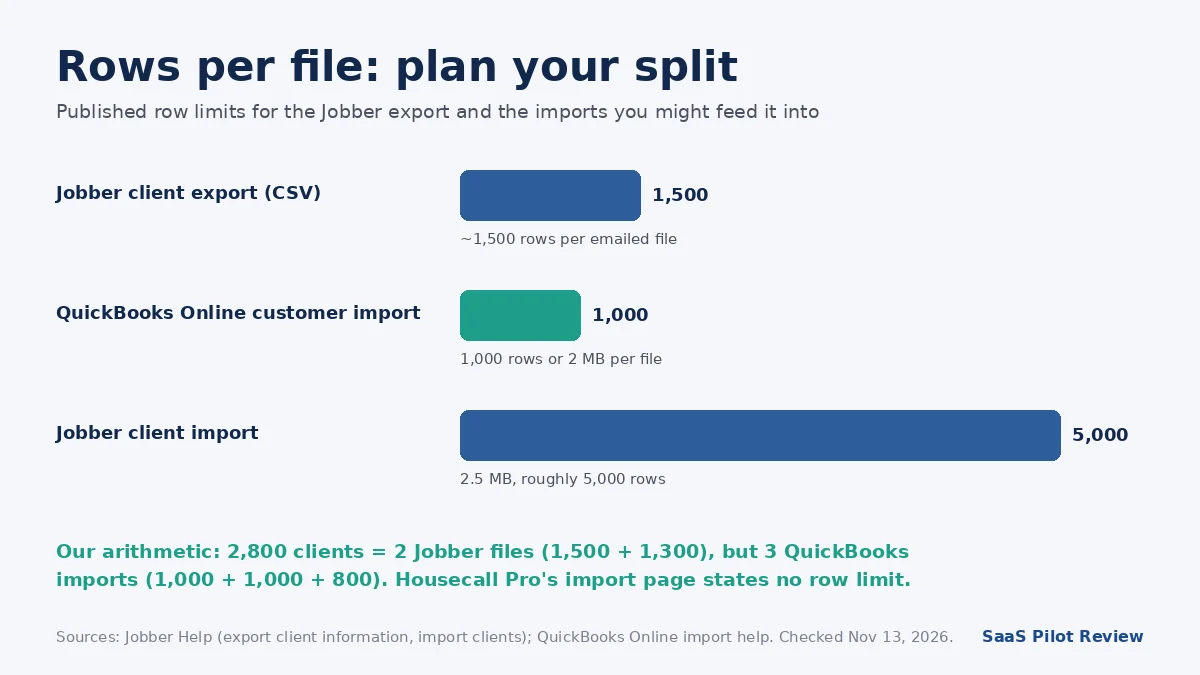
A worked example, our arithmetic: a business with 2,800 clients gets two Jobber files (1,500 + 1,300 rows) but needs three QuickBooks imports (1,000 + 1,000 + 800), because 2,800 ÷ 1,000 rounds up to 3. Jobs are a separate import in Housecall Pro (Jobs > Actions > Import, per the same import article), and owners on its MAX plan can have the Data Import team bring over customers, job history, equipment and price books. If you are still choosing where to go, our shortlist of field service apps for small crews covers the options.
Pre-cancel checklist: what to do before your Jobber access ends
Export first, cancel last. Jobber’s cancel subscription article says that once access ends you lose access to your account data, including clients, jobs and invoices. It does not mention a read-only mode.
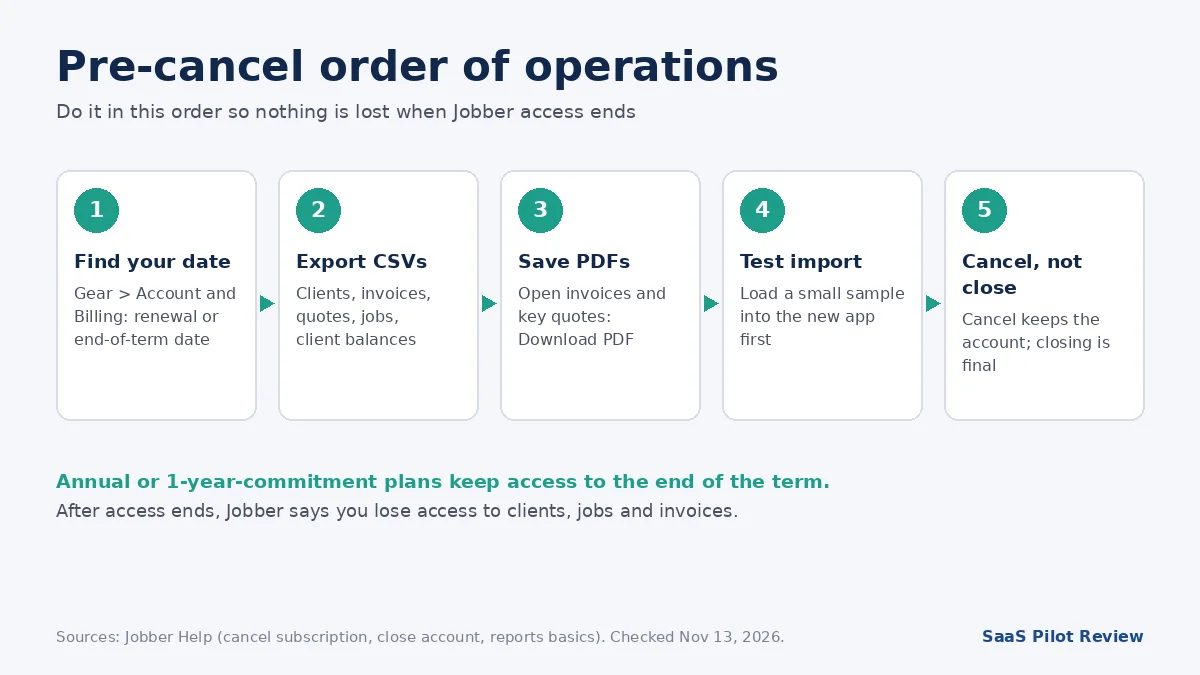
- Find your last day. After you cancel, you keep access until your next billing date, which the confirmation screen shows. On an annual plan or a monthly 1-year commitment, access runs to the end of the full term; the end date is in Account and Billing.
- Run every export in the table above, on All time, and open each file to confirm it is complete.
- Save PDFs of open invoices, accepted quotes and any job you may be asked about.
- Check refunds before you assume one. Web subscribers are pointed to Section 3 of Jobber’s terms of service. If you subscribed through the iPhone or Android app, refunds go through Apple or Google, not Jobber.
- Consider a downgrade. Jobber lets you move to a lower plan from the next billing period, and suggests contacting support to pause.
- Cancel, do not close. Jobber’s close account article says closing is final, the data cannot be retrieved and Client Hub stops working. Cancelling keeps the account so it can be reactivated.
- Tell the bookkeeper. Jobber files 1099-K forms from the Jobber Payments volume on record up to closure, so keep your payout reports.
Questions owners ask before leaving Jobber
Can I export clients from the Jobber mobile app?
Jobber’s reports article says to sign in at Jobber.com, not the app, to reach Reports, and the client export steps refer to the side navigation of the web version. Plan to do the whole export from a computer.
Why did my Jobber export arrive as several files?
Jobber caps each CSV at about 1,500 rows and attaches extra files once you pass 1,499 clients. Stack them in one spreadsheet, keeping a single header row.
Can I bring the file back into Jobber later?
Yes. Jobber’s import uses the J_ID column to match clients exported from Jobber, which is also how it handles bulk updates. Imports must be under 2.5 MB, roughly 5,000 rows. For more tools in this category, see our field service software hub.
Sources
Jobber Help: Export client information, Reports basics, Import clients, Invoices report, Quotes report, One-off jobs report, Clients report, Cancel your Jobber subscription, Permanently close your account. Housecall Pro Help: Prepare to import your data, Import and export jobs and customers. QuickBooks: Import customers from Excel. Rebolt: Jobber migration guide. All read November 13, 2026.