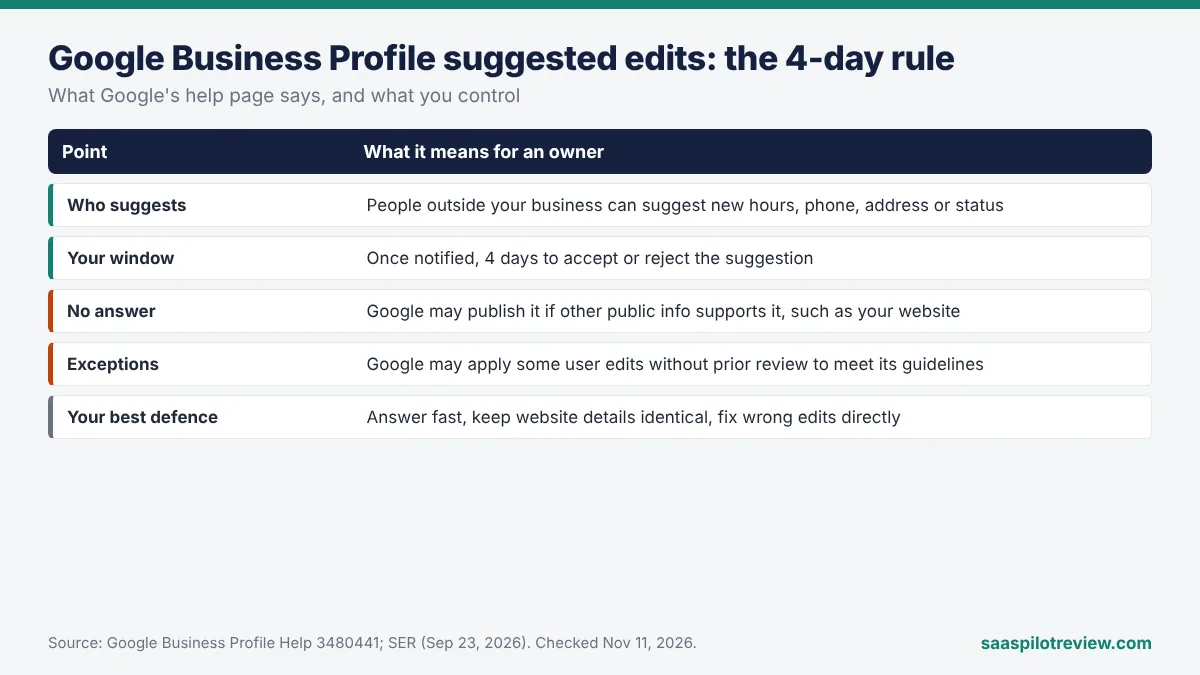
November 11, 2026 · What changed: Google’s Business Profile Help page “Understand Google updates on your Business Profile” now has a section on suggested edits. It says that once you are notified, you have 4 days to accept or reject a suggestion from the public, and that Google may publish it after that if other public information, such as your website, supports it. Search Engine Roundtable first reported the new section on September 23, 2026.
Anyone can suggest a change to your Google listing: new hours, a different phone number, “permanently closed.” Until now most owners treated those suggestions as noise. Google’s help page now puts a clock on them. This guide explains what the Google Business Profile suggested edits rule says, what it does not say, and a short weekly routine a plumbing, cleaning or HVAC business can run so a stranger’s edit never goes live by default.
How we put this together: researched from three Google Business Profile Help pages (Google updates, editing your profile, notification settings) and the Search Engine Roundtable report, all read on November 11, 2026. We have not received a suggested-edit notice on a profile we manage, so the screens are described from Google’s wording, not tested. Our research and testing methods explain the difference.
What Google’s help page now says
The short version: a notified owner gets 4 days, and silence can count against you. The new section of the help page reads, “Once notified, you have 4 days to accept or reject the suggestion.” If you do neither, “Google may automatically publish the update if it is supported by other publicly available information, such as your business website.”
Two more lines on the same page matter:
- “Google may receive suggestions from users to update your Business Profile.” Users here means people outside your business, such as customers who search for you.
- Google “may apply suggested user edits to your business information without prior review” when an edit is needed to meet its guidelines. So not every suggestion waits for you.
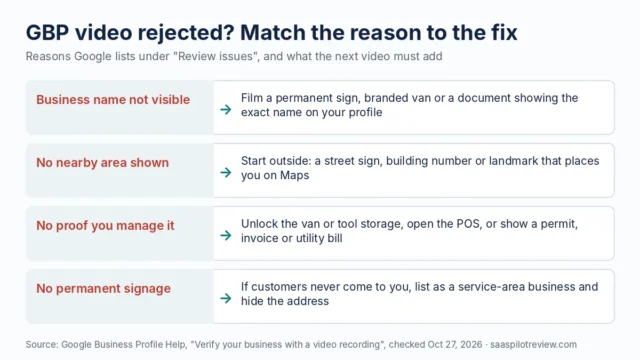
The page also notes you will hear about a suggestion by email or an in-product notification, and that “You can always update your Business Profile directly” to keep it accurate. If you are still fighting to get a profile verified in the first place, our guide to a failed Business Profile video verification covers that step; the 4-day rule only helps owners who can already manage the listing.
A suggested edit is not the same as a Google update
The 4-day window covers suggestions from people. Changes Google makes from its own sources are a separate process on the same help page. In the profile editor, Google marks the second kind in blue (“Blue: Shows info changed by Google”) and shows a notification at the top of the page.
| User suggested edit | Google update | |
|---|---|---|
| Who starts it | A member of the public suggests a change | Google, from reports and other sources it uses |
| How you hear about it | Email or in-product notification | Alert in the profile editor; changed fields shown in blue |
| Your window | 4 days from the notice to accept or reject | No window stated; you can edit the field back |
| If you do nothing | Google may publish it if public info supports it | The change stays until you correct it |
| Can it skip you? | Yes, when Google applies it to meet guidelines | It already went live |
Why this matters for a trades business: the fields people tend to suggest are the ones that cost you calls. A wrong phone number or a “closed” label sends the job to the next listing. If you changed the number on your profile recently for call tracking, our note on LSA now showing your Business Profile number explains why that field is worth guarding.
The 4-day clock, day by day
The clock starts at the notice, not at the moment someone submitted the suggestion. Google does not say whether the 4 days are calendar or working days, so plan for calendar days. A notice that lands on a Friday evening can run out by Tuesday.
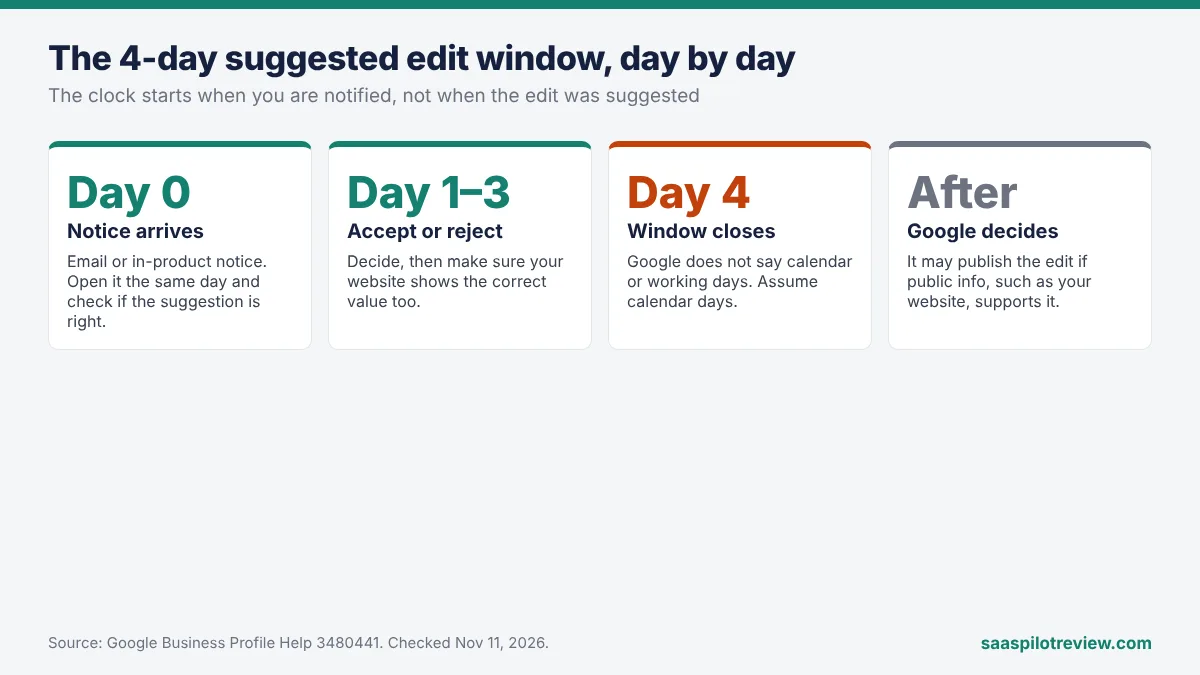
- Day 0, notice arrives. Open it the same day. Check whether the suggested value is right before you reject it; sometimes a customer has spotted holiday hours you forgot.
- Days 1–3. Accept or reject. If you reject, also make sure your own website shows the correct value (next section).
- Day 4 onwards, no answer. The decision passes to Google. Whether it publishes depends on what it finds elsewhere, starting with your site.
Your website is the tiebreaker, so fix it first
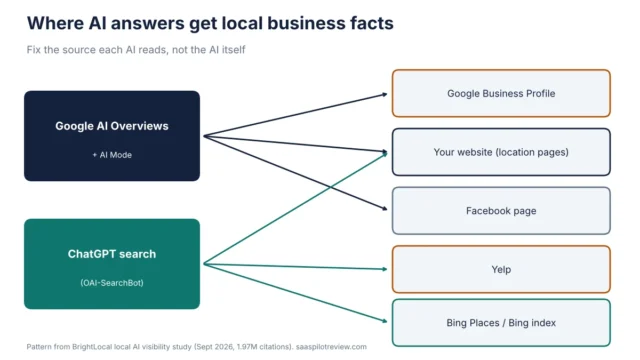
Google names one piece of evidence: “your business website.” If a stranger suggests closing at 5 pm and your site’s footer still says 5 pm from last year, the suggestion looks supported, even though your profile says 6 pm. Rejecting the edit while your site disagrees invites the same suggestion again.
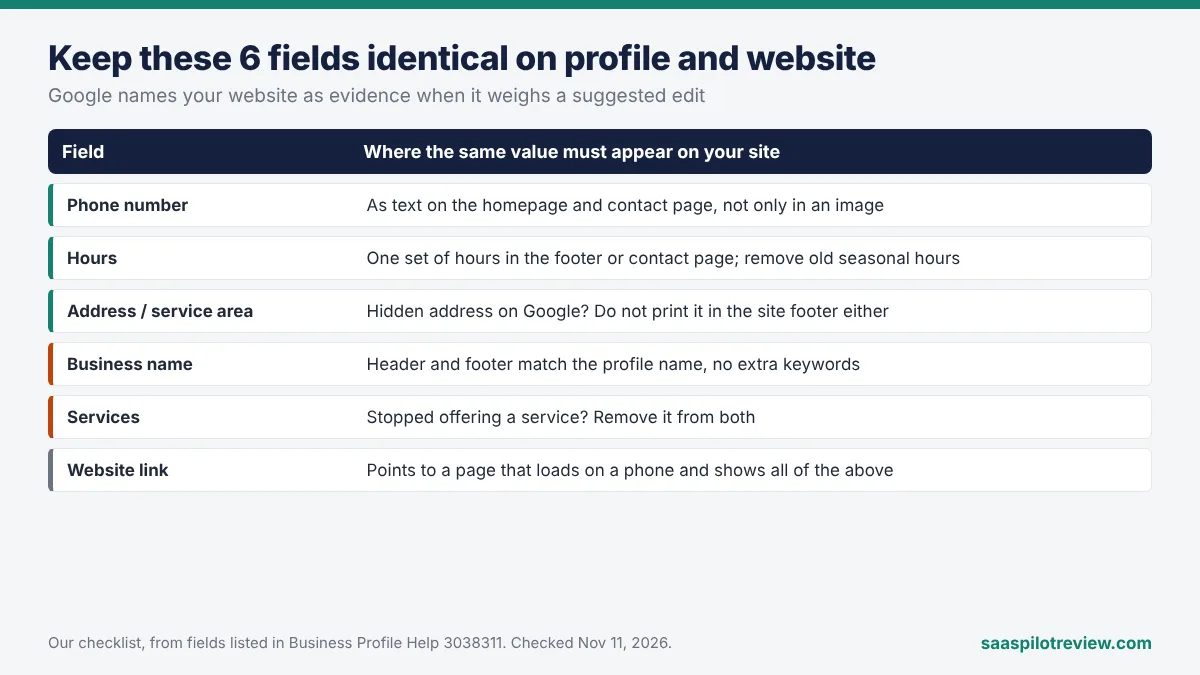
Go through this list once, then again whenever something changes:
- Phone number. The number on your profile should appear as text (not only in an image) on your homepage and contact page.
- Hours. One set of hours on the site, in the footer or contact page. Remove old seasonal hours.
- Address or service area. If you hide your address on Google because you work at customers’ homes, do not print it in your site footer either.
- Business name. The name on the site header and footer should match the profile, without extra keywords.
- Services. If you stopped offering a service, take it off both.
- Website link. The profile should link to a page that loads on a phone and shows the details above.
Your booking or field service app can work against you here. Some apps publish a separate booking page with its own hours and phone number. Check that page too.
A 10-minute weekly routine for a small team
For a business with one or two locations, this is enough:
- Name one person. The owner or the office manager owns the profile. Give a second person manager access as backup for holidays.
- Turn on notifications. Per Google’s notification settings help, open your profile, select More, then Notifications, and turn on the alerts you need. In Google Maps, tap Business, then the notification icon. Google’s page lists “Account updates” and “Business info alerts” but does not name a separate switch for suggested edits, so leave the account and business info alerts on.
- Check the inbox the notices go to. If the profile sits on an old Gmail address nobody reads, move management to an address someone checks every day.
- Open the profile editor once a week. Look for the notification at the top and any blue fields.
- Clean up access. Remove former staff and agencies you no longer work with. Fewer managers means fewer missed or careless approvals.
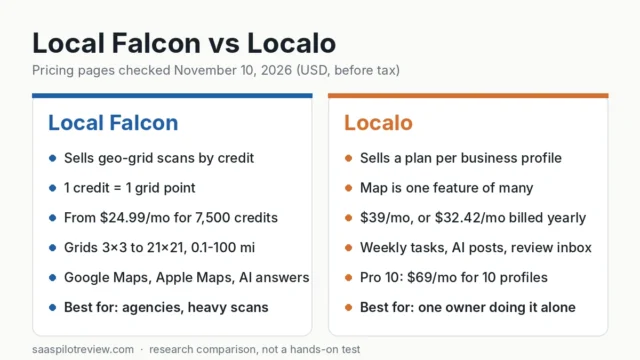
If you already pay for a local SEO tool, check in its own documentation whether it alerts you to profile changes before you rely on it. Our Localo vs BrightLocal comparison covers what those two tools are built for; neither replaces reading Google’s own notice within the 4 days.
If a wrong edit already went live
Edit the field back yourself. Google’s page on editing your Business Profile says owner edits are reviewed and “usually take up to 10 minutes to review, but sometimes it can take up to 30 days,” with a status of Accepted, Not approved or Pending.
- Fix your website first so your correction has support.
- Write down the date, the wrong value and the right value. If your edit is not approved, the same page says owners may be able to appeal.
- If the same wrong edit keeps coming back, keep screenshots of each notice. That record is what you will need if you contact Business Profile support.
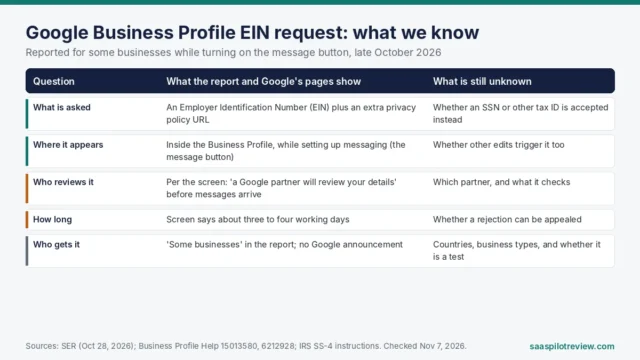
More Business Profile changes from this year are collected in our local SEO hub, including the EIN request some profiles now see for messaging.
Questions owners ask
Does Google always publish the edit after 4 days?
No. The help page says Google “may” publish it if other public information supports it. An edit that contradicts your website is less likely to have that support, though Google does not describe how it weighs sources.
Can I stop people suggesting edits?
None of the three help pages we read offers a setting to turn suggestions off. What you control is how fast you answer and how consistent your website is.
Is the 4 days calendar or business days?
Google does not say. Treat it as calendar days.
Do suggested edits affect my ranking?
Google does not connect the two. A wrong category, phone number or “closed” status will cost you calls, which is the bigger problem.
Sources (read November 11, 2026): Google Business Profile Help, “Understand Google updates on your Business Profile”, “Edit your Business Profile” and “Manage notifications”; Search Engine Roundtable, “Google Business Profiles Gives You Four Days To Reject User Edits” (September 23, 2026).