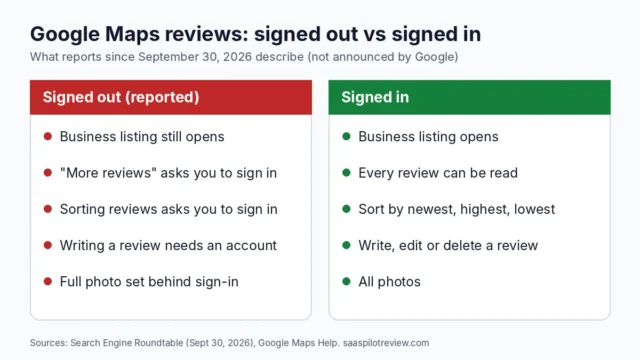
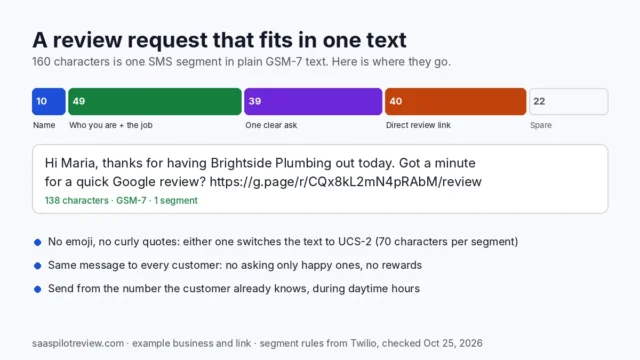
You finished a big job, the customer left a glowing five-star review on Google, and your Jobber website still shows the same handful of reviews it showed months ago. Nothing is broken on Google’s side. The Google reviews block on a Jobber website copies a set of reviews when you connect it and, according to Jobber’s own support team, does not pull new ones on its own.
This guide explains why the reviews block stops updating, how to pull a fresh set, what to do when the same few reviews keep coming back, and how to put your newest reviews in front of visitors anyway. More fixes like this live in our reviews and reputation guides.
How we put this together: the steps below come from Jobber’s Help Center, replies from Jobber’s support team in the Jobber Community and Google’s developer documentation, all listed in the sources at the end. We have not run a Jobber website ourselves, so we point out where Jobber has not published details. We earn nothing from any product named on this page. Our research and testing methods explain how we check facts like these.
Why your Jobber website stops showing new Google reviews
The reviews block on a Jobber website is a snapshot, not a live feed. Google reviews appear in the Testimonials section, which you link to your Google Business Profile from the section’s Content tab. When a Jobber user reported in the Jobber Community that new reviews never appeared after the first load, a member of Jobber’s support team replied that the Google reviews section is static, does not refresh automatically and has no manual refresh button.
Jobber’s Help Center article on websites describes how to connect the section but does not say how many reviews it shows or how often it updates. So the safest assumption is the one Jobber support gave: what you see is the set that was pulled when the profile was connected.
Check the review is actually public on Google first
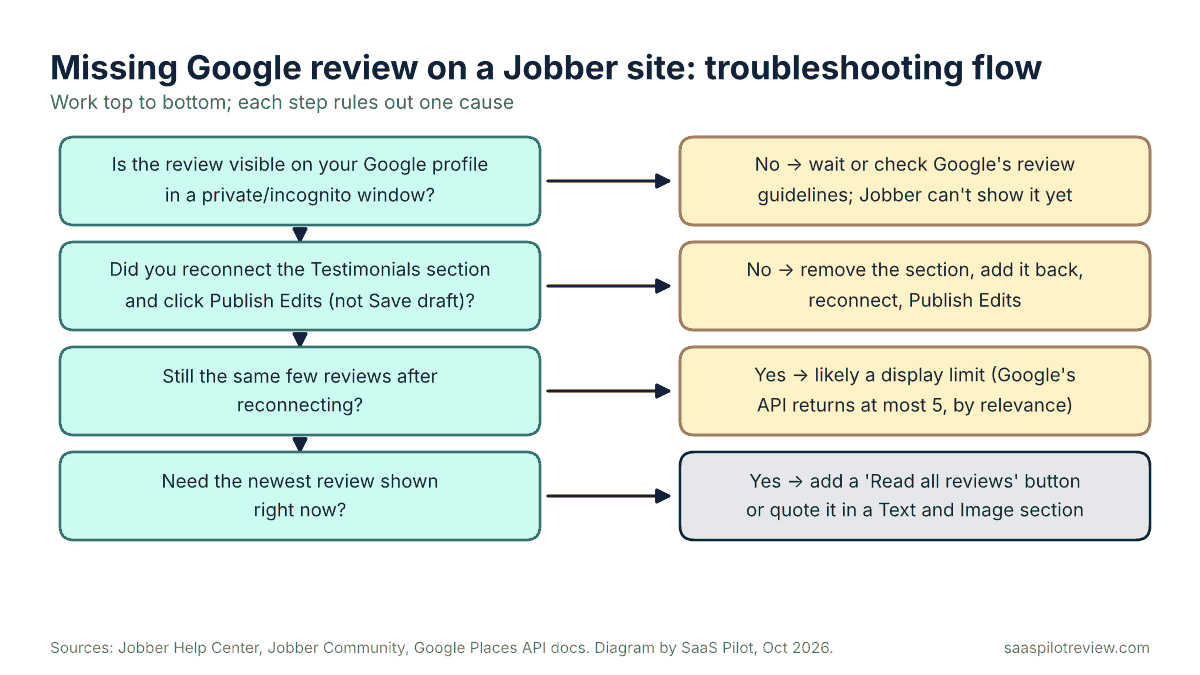
Before touching your website, confirm the missing review can be seen by the public. Open a private or incognito browser window, search for your business name and open the reviews on your Business Profile. If the review is not there, no website tool can display it.
- Brand-new reviews can lag. Jobber’s own Reviews help article notes that reviews can take time to appear on Google after a customer posts them.
- Google may hold or remove some reviews. Reviews that trip Google’s policy checks can be delayed or never published. That happens on Google’s side, before Jobber is involved.
- Your profile must be verified. Jobber’s Help Center says the Testimonials section needs a verified Google Business Profile, and that applies to service-area businesses too.
If the review shows in incognito but not on your site, the website section is the problem. Move on to the fix.
Pull a fresh set: remove, re-add and reconnect
The workaround Jobber support suggested is to remove the Google reviews element, add it back and reconnect it so it pulls a new set. Using the menu names in Jobber’s Help Center, that looks like this:
- In Jobber, go to Marketing, then Website, and select View my website.
- In the Customize website panel, find the Testimonials section. Note where it sits on the page and how its Style tab is set, so you can rebuild it the same way.
- Remove the Testimonials section.
- Add a new Testimonials section in the same spot.
- Open its Content tab, choose Add Google Business Profile, then search for and select your business.
- Restore your layout in the Style tab.
- Click Publish Edits. Save draft under More Actions only saves your work; visitors keep seeing the old version until you publish.
- Open your live site in an incognito window and check the reviews block.
Put a reminder in your calendar to repeat this once a month, or right after a run of new reviews. It takes a few minutes and is the only refresh Jobber has described.
Same three to five reviews after reconnecting?
If you reconnect and the block still shows only a few reviews, and not your newest one, you are probably hitting a limit rather than a bug. One Jobber user said in the same Community thread that, after removing and re-adding the profile several times, her site still showed the same three reviews. Jobber support’s answer was to contact Jobber’s Success Team to find out whether that was expected.
Jobber has not said how its website pulls Google reviews. Many website review blocks rely on Google’s Places API, and Google’s documentation for that API says it returns a maximum of five reviews per place, sorted by relevance rather than by date. If Jobber’s block works the same way, your newest review may not appear even after a fresh connection, because Google decides which five reviews are “most relevant.” Treat that as a likely explanation, not a confirmed one, until Jobber says otherwise.
| What you see | Likely cause | What to do |
|---|---|---|
| Newest review missing on Google too | Review still processing, or held by Google | Wait a few days; check the review against Google’s review policies |
| Review on Google, site unchanged for months | Testimonials section is a snapshot | Remove, re-add, reconnect, then Publish Edits |
| Edits made but live site unchanged | Changes saved as a draft | Click Publish Edits, then check in incognito |
| Same 3 to 5 reviews after reconnecting | Display limit; Google may supply only a few “most relevant” reviews | Contact Jobber, and show newer reviews another way (next section) |
Ways to show your newest reviews anyway
You do not need to wait for Jobber to change the section. These options use only the sections Jobber’s Help Center lists for its websites, plus one that moves reviews off the Jobber builder. For that last route, Trustindex vs Elfsight compares two widget tools on price and how often they refresh. If you would rather pay for faster refreshes, EmbedSocial vs Elfsight covers sync times on each plan.
- Keep your star rating in the Hero section. Jobber’s Hero section can show your Google review rating next to your headline, so visitors see your overall score even if the review text is older.
- Add a “Read all our Google reviews” button. A Banner section can carry a button. Point it at your Google Business Profile reviews so visitors can read every review, newest first if they sort by date.
- Quote a new review by hand. A Text and Image section can hold a short quote from a recent review, with the reviewer’s first name as it appears on Google and the month it was posted. Swap it out when a better one arrives. Keep the wording exactly as written and do not edit it to sound better.
- Use a dedicated review tool on a site you control. If reviews drive most of your bookings, a review widget that refreshes on its own may be worth paying for. Our guide to review management software for small businesses compares tools that include website widgets. Check first that your website builder lets you embed them. On Squarespace, widget code needs a Core plan or higher; our guide on how to add Google reviews to Squarespace covers the free route on Basic.
Get more fresh reviews so there is something new to show
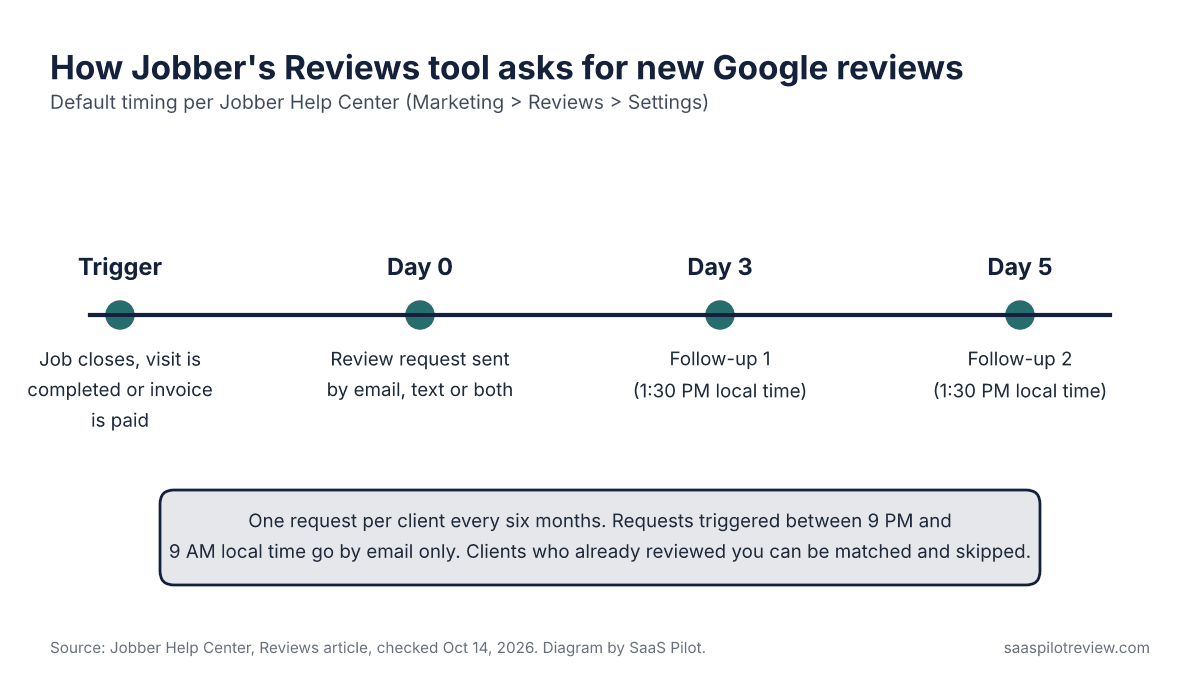
A stale reviews block hurts less when new reviews keep arriving on Google, where most customers read them anyway. Jobber’s Reviews tool, under Marketing > Reviews, connects to your Google Business Profile and asks clients for a review automatically. According to Jobber’s Help Center:
- The first request can fire when a job closes, when a visit is completed or when an invoice is paid.
- Requests go by email, text or both, with up to two follow-ups three and five days later at 1:30 PM local time.
- Each client gets at most one request every six months, and requests triggered between 9 PM and 9 AM go by email only.
- If a client looks like someone who has already reviewed you, Jobber flags the match and turns off “Ask for review” for that client.
Jobber’s Help Center lists Reviews as part of its Marketing Suite. Plan prices change, so check what Jobber costs in 2026 before you count on it. If you are still choosing a platform, our Housecall Pro vs Jobber comparison covers how the two handle marketing tools. Once new reviews come in, you can also draft review replies with Gemini if your profile qualifies.
What to send Jobber support
If the block still will not update after you reconnect and publish, contact Jobber. In the Community thread, Jobber support pointed users to the Success Team by phone at 1-888-721-1115 (option 1) or by email. Have this ready so they can check your account in one go:
- Your live website address and the name of your Google Business Profile exactly as it appears on Google.
- The date and reviewer name of the newest review you expected to see.
- A screenshot of your Google reviews in an incognito window, and one of the Testimonials section on your live site.
- The date you last removed and reconnected the section, and confirmation that you clicked Publish Edits.
Ask them two direct questions: how many Google reviews the Testimonials section can show, and whether it can show the newest reviews instead of the most relevant ones. Their answer tells you whether a monthly reconnect is enough or whether you should use one of the workarounds above for good.
Sources
Checked October 14, 2026: Jobber Community: Google reviews not syncing to website; Jobber Help Center: Websites; Jobber Help Center: Reviews; Google Places API reference (Place resource, reviews field).