How this page was made: researched from Google Business Profile Help, Google’s Maps content policy and launch coverage in Search Engine Roundtable, not hands-on tested. The steps below follow Google’s own help page as of November 18, 2026; we did not generate a code from a client’s profile for this article.
A Google review QR code is a square code that opens your business’s review form on a customer’s phone, so they can rate you without searching for your name first. Google now makes one for you inside your Business Profile, free, so you do not need a third-party QR generator. The catch most owners hit: you can only create it from a computer browser, not from the Google Maps or Business Profile app on your phone. Below are the exact steps, where a QR code works for a service business and where a plain link works better, and the review rules that can get reviews removed. If you want the wording to send with it, use our review request text templates.
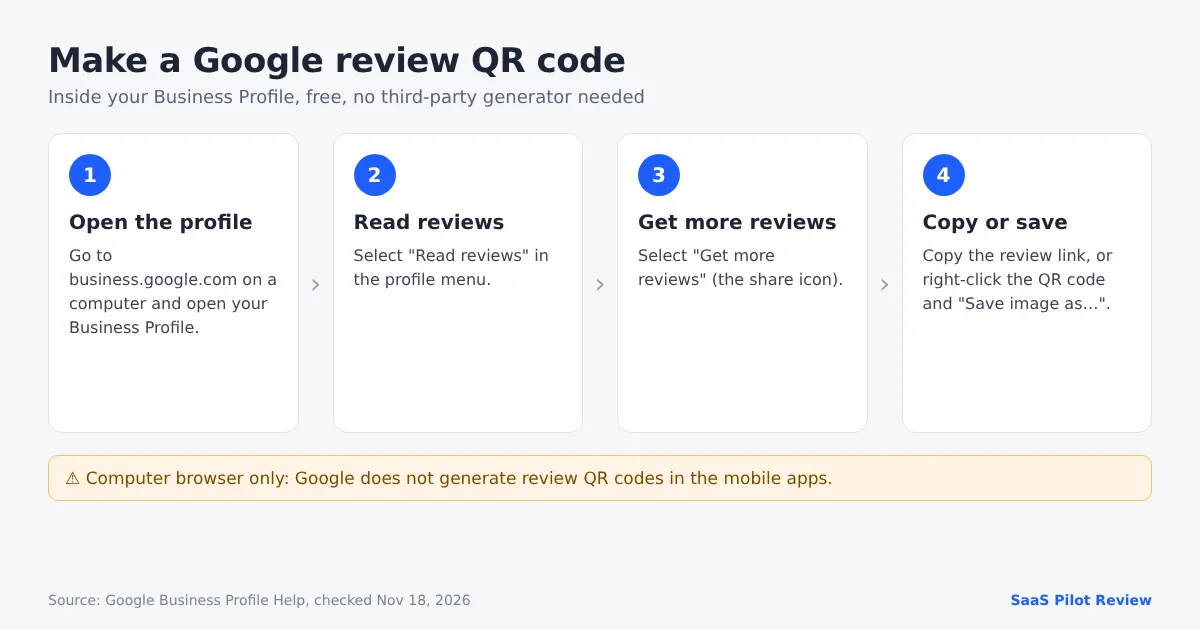
Make a Google review QR code in four clicks
Google’s help page on review links and QR codes gives these steps, and they only work on a computer:
- On a laptop or desktop, go to business.google.com and open your Business Profile.
- Select Read reviews.
- Select Get more reviews (the share icon).
- Choose what you need: click the copy icon to copy the review link, or right-click the QR code and choose Save image as… to download it. The same panel offers share buttons for email, WhatsApp and a Facebook post.
Another route, if you manage the profile straight from Google Search: search your business name while signed in, then click Ask for reviews or open your reviews and click Get more reviews. Search Engine Roundtable reported the built-in QR option when it first appeared on March 4, 2025.
Two practical checks before you print anything. First, scan the saved image with your own phone and confirm it opens your review form, not a competitor’s or a different location. If you run more than one location, each profile has its own code, so make one per location and label the files. Second, keep the review link in a note on your phone; you will paste it into texts far more often than you will print the code.
Can I make the QR code on my phone?
No. Google’s help page says review QR codes can only be generated in a computer browser. What you can do on a phone is share the review link once you have it. If you are out on jobs all day, make the code once at a desk, then email the image and the link to yourself so both are on your phone.
If you already have the link but no computer handy, any QR generator can turn that link into a code. The result opens the same form. Just avoid generators that route the scan through their own short link, because if that service shuts down or puts the link behind a paywall, every printed card stops working. A code made from Google’s own link does not depend on anyone else.
QR code or link: where each one works for a service business
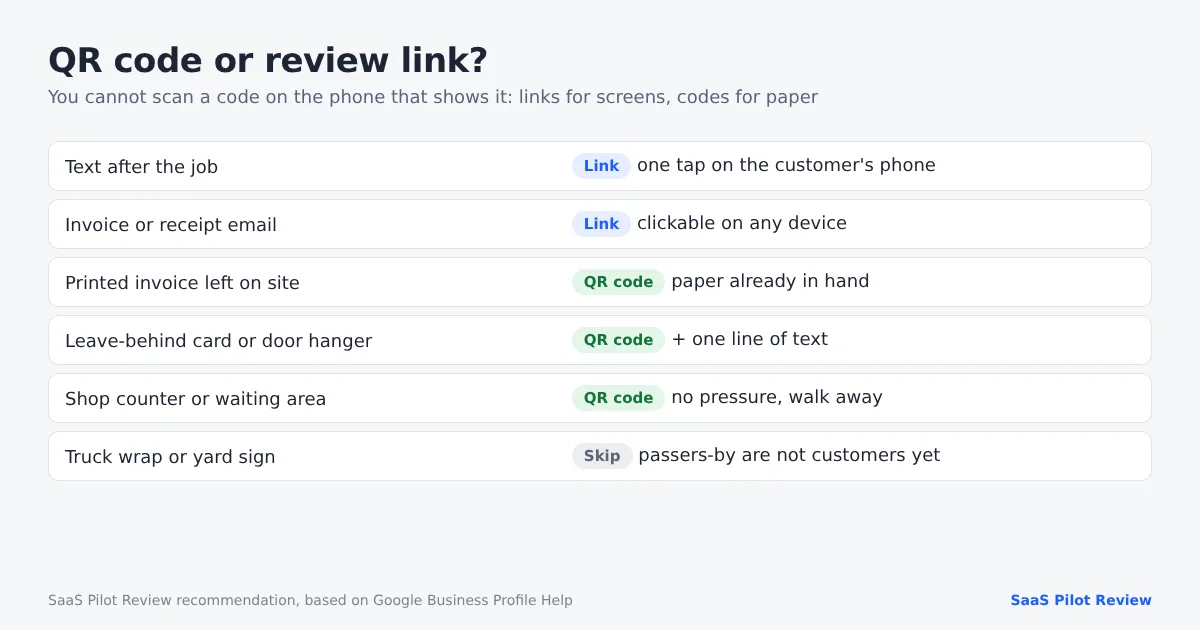
A QR code only helps when the customer is looking at paper or another screen. You cannot scan a code on the same phone it is displayed on. For a plumbing, HVAC, cleaning or landscaping company, most review requests happen by text or email, so the link does more of the work. This is how we would split it:
| Touchpoint | Use | Why |
|---|---|---|
| Text after the job is done | Link | The customer is on their phone; one tap opens the form. |
| Invoice or receipt email | Link | Clickable on any device; add one line asking for a review. |
| Printed invoice or job summary left on site | QR code | Paper is in hand; the code saves typing a long URL. |
| Leave-behind card or door hanger | QR code + short line of text | Customers who scan later still land on the right form. |
| Front counter or waiting area (if you have a shop) | QR code | Works for walk-in customers; do not stand over them while they scan. |
| Truck wrap or yard sign | Skip | Passers-by are not customers yet, and reviews must reflect a real experience. |
The best moment to ask is right after the customer has seen the result: the heat is back on, the drain runs, the lawn is cut. Our guide on getting more Google reviews for an HVAC company walks through timing and who on the crew should ask.
Five review rules that matter more than the code
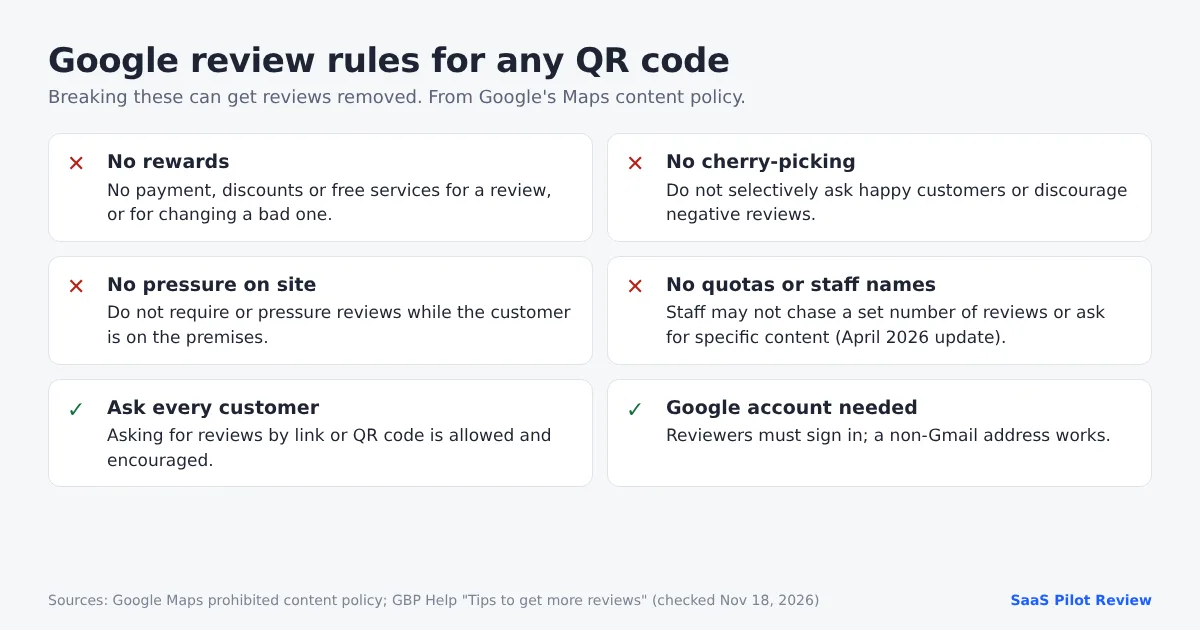
A QR code does not change Google’s rules, and breaking them can get reviews removed. These come from Google’s Maps prohibited and restricted content policy and its tips for getting more reviews:
- No rewards. Google prohibits offering “payment, discounts, free goods and/or services” for posting a review, or for changing or removing a negative one. “Scan for 10% off your next visit” next to the code breaks this.
- Ask everyone, not just happy customers. The policy bans merchants who “selectively solicit positive reviews” or discourage negative ones. Do not hand the card only to the customers who smiled.
- No pressure on site. Merchants “should not require or pressure users to leave ratings or write reviews while on the premises.” Hand over the card and leave; do not wait at the door while they scan.
- No quotas or scripted content for staff. Since an April 2026 policy update, merchants may not ask staff to collect a set number of reviews or reviews with specific content, including content that names a staff member. “Mention Mike in your review” on a tech’s card is now a problem.
- Customers need a Google account to post, though it can use a non-Gmail address. Expect some scans to stop at the sign-in screen; Google has also started asking people to sign in to read reviews on Maps, as we covered in Google Maps now asks people to sign in to read reviews.
When a QR code is not enough
A printed code works for a small crew sending a handful of requests a week. Once you are finishing dozens of jobs, people forget to hand out cards, and nobody follows up with the customers who did not scan. That is where automated review requests come in: software that texts the review link when a job is marked complete in Jobber or Housecall Pro and sends one reminder. Our comparison of review management software for small businesses covers the tools that do this, and if your Jobber website is not showing new reviews after they come in, see how to fix Jobber’s Google reviews block.
Whichever route you choose, make the code once, test it, and put the link in every job-complete message. More guides like this one are in our reviews and reputation hub, and how we research them is on our how we test page.
Sources
- Google Business Profile Help: Create a Google link or QR code to request reviews (checked November 18, 2026), linked above
- Google Business Profile Help: Tips to get more Google reviews, linked above
- Google Maps user contributed content policy: Prohibited and restricted content (fake engagement and rating manipulation sections), linked above
- Search Engine Roundtable, “Google Business Profiles create QR codes for reviews” by Barry Schwartz (March 4, 2025), linked above
- PPC Land report on the April 2026 Maps review policy update (staff quotas and staff names)