How this page was made: researched from Jobber’s help center articles on the Products & Services list, editing a job, visits, invoicing and Campaigns, plus the Jobber pricing page, not hands-on tested. Prices checked 2026-11-21 (US, USD, before tax).
If you run a cleaning, lawn or pest route on Jobber, a price raise is mostly a data problem: dozens of recurring jobs each carry their own line item prices. Jobber’s help center does not describe a one-click way to raise prices on existing recurring jobs, but it does document the pieces you need: a bulk update for your price list, job-level edits, and a “Save and update future visits” option on visits. If the push to raise your own prices came from Jobber’s subscription going up, our breakdown of the 2026 Jobber price increase shows what changed on your bill.
The short answer: three places to change, one by hand
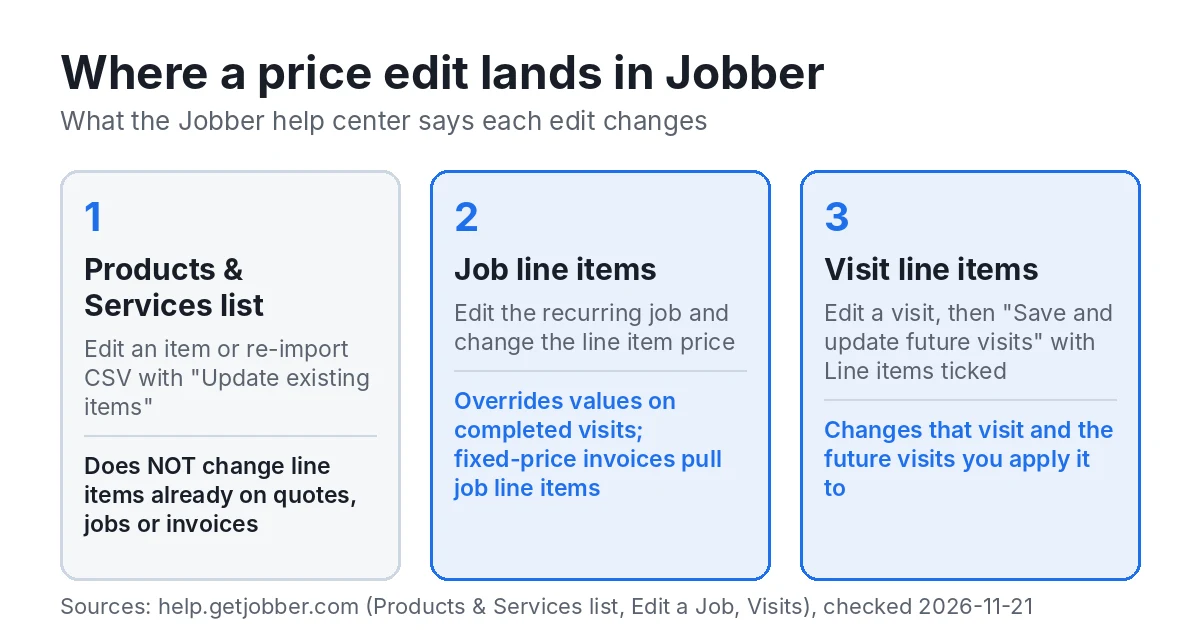
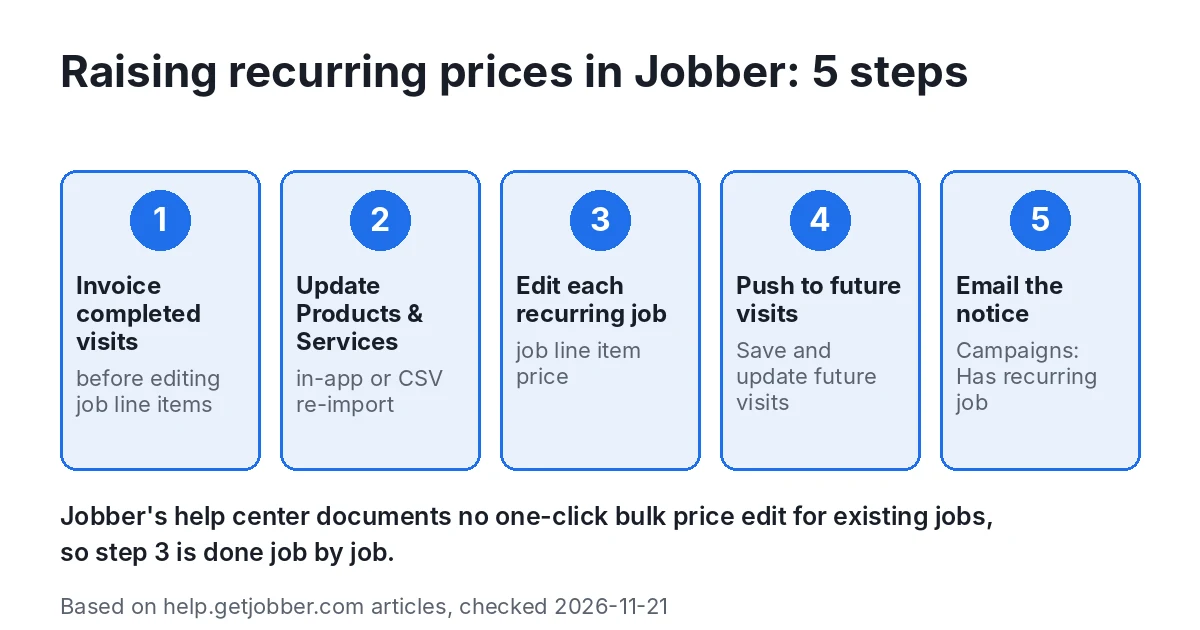
To raise prices for existing recurring clients in Jobber, you update the Products & Services list (one item at a time or by CSV re-import with “Update existing items”), then change the line item price on each recurring job and push it to upcoming visits with “Save and update future visits.” The price list step is fast. The per-job step is manual, because the help center’s own Products & Services article says that updating an item “does not change this line item on any quotes, jobs, or invoices” it was already added to.
For the client notice, Jobber’s Campaigns tool can email everyone with a recurring job. Campaigns sits in the Marketing Suite, which the pricing page lists as included in Plus and as a $99/month add-on on the other plans.
| What you change | Where in Jobber | What it affects (per the help center) |
|---|---|---|
| Unit price of a product or service | Products & Services list, or CSV import with “Update existing items” | New quotes, jobs and invoices that add the item. Existing line items stay the same. |
| Line item price on a recurring job | Open the job, click Edit | Overrides those values on completed visits. Fixed-price invoices pull the job’s line items. |
| Line item price on one visit | Open the visit, More Actions > Edit | Only that visit, unless you use “Save and update future visits” with Line items ticked. |
| Billing type and invoicing schedule | Edit the recurring job’s invoicing | Whether invoices bill per visit or a fixed price, and when invoice reminders (or autopay charges) fire. |
| Client notice | Campaigns (Marketing Tools) | A one-off email to the clients your filters select. |
Before you edit anything, invoice the visits already done
Close out completed work at the old price first. The help center’s job editing article says an edit to “the quantity, name, description or price of a line item at the job level overrides these values on completed visits.” Read literally, a job-level price edit made today could also land on visits that were finished last week and not yet invoiced, so a client could be billed the new rate for old work.
The safe order for each route:
- Run your normal invoicing for every visit completed under the old price.
- Pick an effective date and give clients notice (template below).
- Make the price edits after the last old-price visit is invoiced, ideally just before the first new-price visit.
If you bill per visit with invoice reminders set to “After each visit,” this is usually a short list. On a “Monthly on the last day of the month” schedule, the Invoice Reminders article explains that the reminder only appears at month end, so time your edit for the start of a billing month.
Step 1: raise the prices on your Products & Services list
Update the list so every new quote and job uses the new rate. For a few items, open the list, click an item to open its details, change the “Unit price ($)” field and click Update.
For many items, the Products & Services article describes a bulk path and names “raising prices across the board” as a use for it:
- Put your items in a CSV spreadsheet and change the Unit Price column.
- Keep Unit Cost and Unit Price as plain numbers. The article warns that a “$” symbol will cause an issue with the import.
- Import the file, check “Update existing items,” then click Import data.
Rows you did not change stay the same, and the import has a 2.5MB limit per upload. Two caveats from the same article: if you sync with QuickBooks US, you cannot update the list by import and must edit items in QuickBooks; and on the Grow plan, markup is recalculated when cost or price changes.
What this step does not do: it does not touch the line items already sitting on your recurring jobs. The help center states that for in-app edits, and it does not say a CSV update behaves differently, so plan on step 2 either way.
Step 2: change the price on each recurring job and its future visits
Each recurring job needs its own edit. Jobber’s help center does not document a bulk tool for changing line item prices across many existing jobs, so this is a job-by-job pass. Sorting your client list helps: the Tags article says you can bulk-add tags to selected clients and filter the client list by tag, so you can tag “2027 rate” clients and work down that list.
Edit the job’s line items
Go to Jobs, open the job and click Edit, then change the line item price and save. Per the recurring job article, “Visits are automatically created with the same line items as the job,” so the job is the master copy for visits Jobber creates from here on.
Push the new price to upcoming visits
The help center does not say outright whether a job-level edit rewrites visits that already exist on the schedule. The Visits article does document a way to make sure: open the next upcoming visit, choose More Actions > Edit, change the line item price, then click “Save and update future visits.” The pop-up lets you choose what to apply to later visits, and “Line items” is one of the options, alongside title, time of day, repeats and assigned team. Without that button, the article says, “Editing a visit will only change the details on that particular visit.”
After saving, open a visit two or three weeks out and check the line items. On the visit details screen the article notes that line item cost does not appear, only quantity, so check from the edit view.
Watch out for custom visit line items
If you added one-off extras to particular visits, those are custom visit line items. They bill only on their own visit dates, and on a fixed-price job they “will not transfer to the invoice,” per the job editing article.
Per-visit or fixed price: what the next invoice and autopay pull
Which edit matters most depends on how the job bills. The Automatic Payments article spells it out: on per-visit billing, line items from each visit go onto the invoice; on fixed-price billing, “the line items that appear on the job (not visit) will be pulled onto the invoice.”
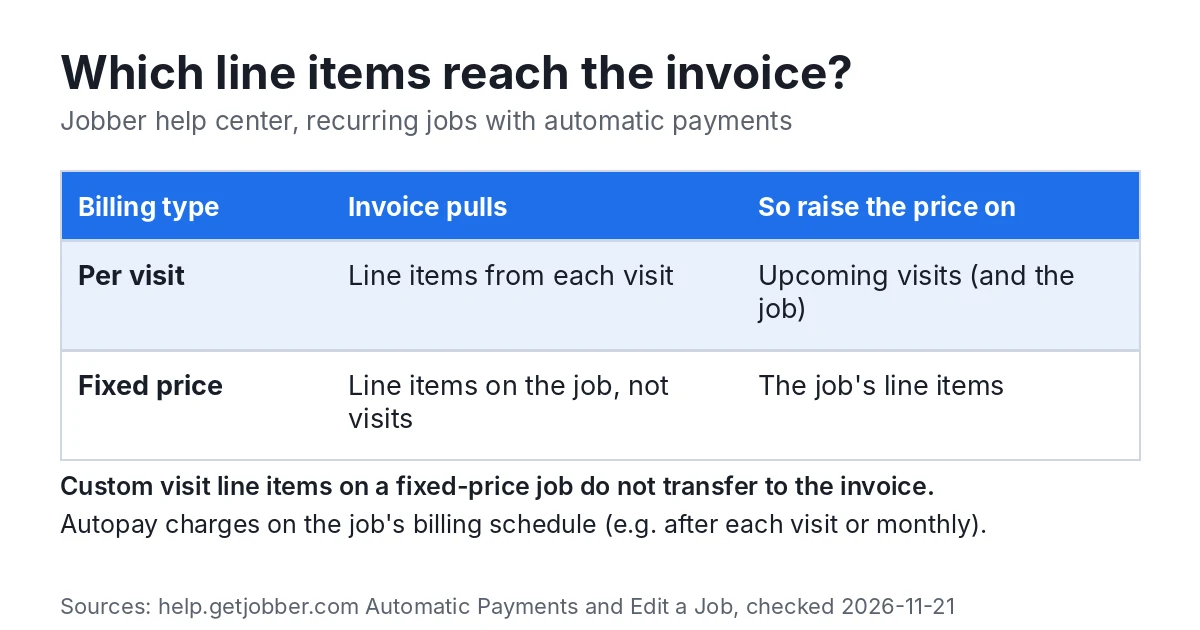
- Weekly or biweekly cleaning or lawn visits billed per visit: the visit line items are what get invoiced, so the “Save and update future visits” step is the one that matters.
- Flat monthly pest or lawn plans billed at a fixed price: the job’s line items drive the invoice, so the job-level edit is the one that matters.
- Clients on autopay: Jobber creates each invoice on the job’s billing schedule and charges the saved payment method right away, and the client gets an emailed receipt. The article does not describe any client warning when a job’s price changes, which is why the notice below should go out first.
You can also switch a recurring job between per-visit and fixed-price billing and change when you invoice, according to the job editing article, if the raise is a good moment to move clients to a flat monthly plan.
Telling clients: Campaigns plus a short notice template
Jobber’s help center does not describe a built-in “price change” notification that fires when you edit a job. What it does document is Campaigns, which can send a one-off email to a filtered group. Filters include “Has recurring job,” “Client tags,” “Client status,” “Services used in job” and “Upcoming clients,” and they stack as “and” conditions. Each campaign can reach up to 15,000 recipients, and only each client’s primary (starred) email is used. The help article says Campaigns is available on all plans except Lite; the pricing page lists the Marketing Suite as a $99/month add-on, included in Plus.
If you do not have the Marketing Suite, send the same text from your own email or by text, using the tagged client list from step 2 as your checklist. Here is a notice you can adapt:
Hi [First name],
Thank you for having us at [address] [weekly/every two weeks]. Starting with your visit on or after [effective date], your [service] price will change from $[old] to $[new] per [visit/month]. Supplies, fuel and labor costs have gone up, and this keeps the same crew and schedule you are used to.
Nothing changes on your end: your visits stay on the same days, and [your card on file will be charged after each visit / your invoice will arrive as usual]. If you have questions or want to adjust your service, reply to this email or call [phone] before [date].
Thanks again,
[Your name], [Business name]
Give at least one full billing cycle of notice, and make the effective date match the date you will make the edits in Jobber.
What the Jobber help center does not cover
We could not find help center instructions for these, so we are not going to guess at a workaround:
- A bulk edit that changes line item prices across many existing jobs at once.
- Scheduling a future-dated price change on a job.
- Whether a CSV update to the Products & Services list changes line items on existing jobs (the article only states that in-app edits do not).
- An automatic client notification when a job’s price is edited.
If you have hundreds of recurring jobs, ask Jobber support whether they can help before you start the manual pass. If a yearly raise across a big client list is a recurring headache, it is worth knowing how other tools handle it; our Housecall Pro and Jobber comparison and the cleaning business software roundup are good places to compare.
Does raising your prices cover what Jobber costs you?
A raise is a good time to check the other side of the margin. Jobber’s own plans range from Core to Plus, with seat-based tiers; see what each Jobber plan costs in 2026 for the full table. For a solo operator with a handful of recurring clients, our piece on whether a spreadsheet is still enough runs the numbers, and the field service software picks for small crews and the wider field service software hub cover alternatives if you are reviewing tools at the same time.