How this page was made: researched from Jobber’s help center (its two QuickBooks Online sync error articles, the automated sales tax article and the migration guide), not hands-on tested. Every error message below is quoted as Jobber prints it in those articles; we did not trigger these errors in a live account. See how we research and test. Help pages checked November 28, 2026. No prices are quoted on this page. We do not earn a commission from Jobber.
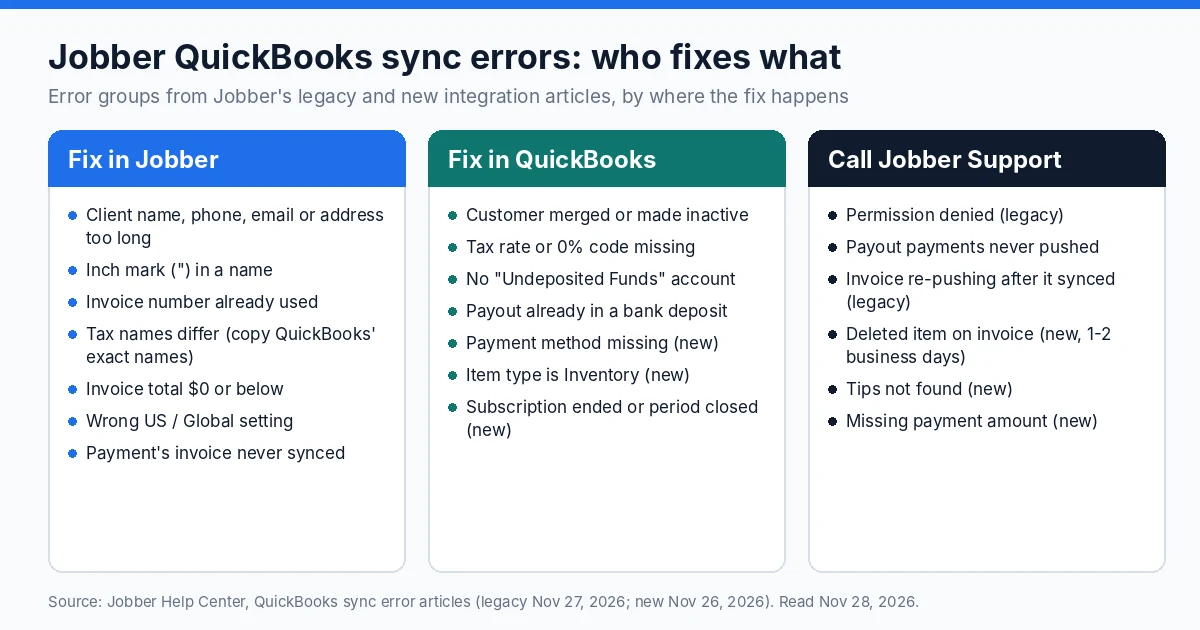
Most Jobber QuickBooks sync errors come from five causes: a client record QuickBooks won’t accept (name taken, field too long, odd character), a tax rate that doesn’t match between the two apps, an item or invoice that was changed or deleted on one side, a payment whose invoice never made it across, or a broken connection. Fix them upstream first: clients, then products and services, then invoices, then payments, then payouts. One client error blocks every invoice and payment for that client, so a single bad record can look like fifty failures.
The exact wording depends on which integration you run. Jobber keeps two error references, one for the legacy QuickBooks Online sync and one for the new integration, and several messages that look alike come with different fixes. If your error is about a client name that already exists, or you are seeing two copies of the same customer, our guide to fixing duplicate clients between Jobber and QuickBooks covers that case step by step, so it gets only a short mention here.
Legacy or new integration: which error list applies to you?
Check this before you search for a message. Jobber’s migration article (updated November 26, 2026) describes the new integration as one-way and real-time: Jobber pushes to QuickBooks, Jobber is the source of truth for clients, products and services, and there is no “Sync now” button anymore. The legacy sync runs when you trigger it and shows its results on the QuickBooks Sync page.
- New integration: available on the Connect, Grow and Plus plans in the US and Canada, per the same article. Errors are listed in Jobber’s common QuickBooks sync errors article for the new integration (updated November 26, 2026).
- Legacy integration: errors are listed in Jobber’s QuickBooks Online sync error messages article (updated November 27, 2026).
If your account can move, Jobber shows a banner on your QuickBooks settings page with a Connect Now button. Jobber says you cannot go back to legacy after migrating. If you are weighing whether the plan that includes the sync is worth keeping, our Jobber plan-by-plan price list has the current tiers.
Where do the errors show up, and what order should you clear them in?
In the new integration, go to the Gear Icon, then Settings, Connected Apps, QuickBooks Online Integration, Manage App, Sync Settings, or click the sync alert in the top navigation. That dashboard lists each item with its own resolution steps. Jobber splits them into two kinds: errors block the item from syncing until fixed, while warnings mean the item synced but something was changed on the way. Bulk Resolve (#) and Ignore (#) buttons act on every item matching your filters, not only the first page, and retried items move to Waiting to Sync.
Jobber gives a resolution order, and it matters more than any single fix:
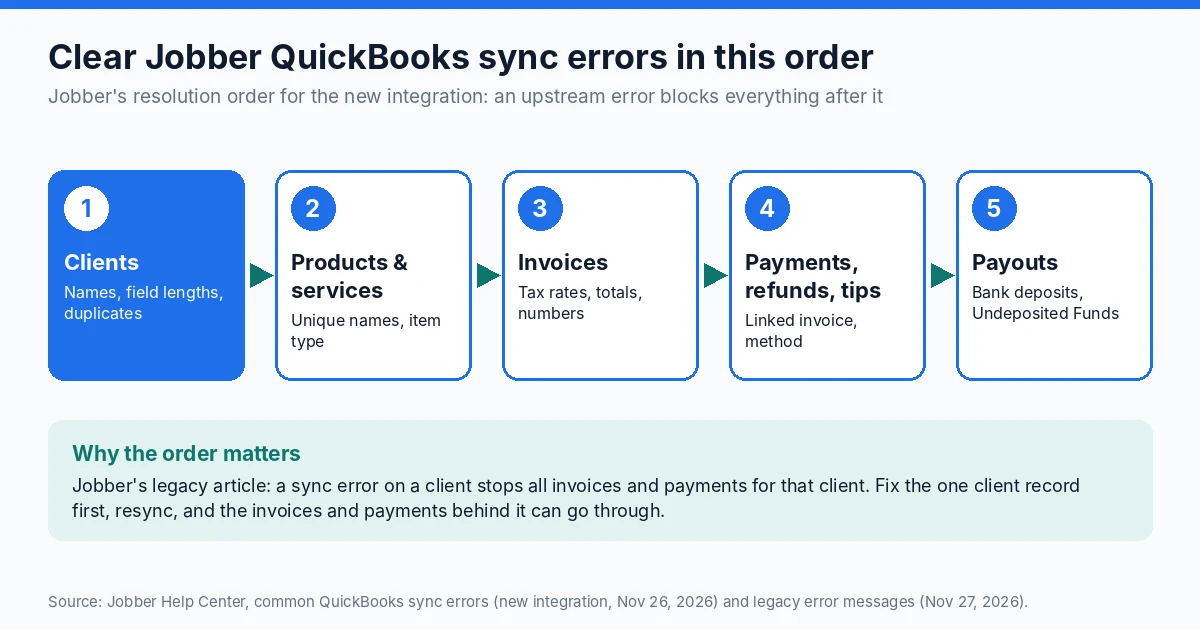
Picture a 4-tech HVAC shop that sees 23 failed items after a busy week. Twenty of them are invoices and payments for one property manager whose phone field holds two numbers and an extension. The legacy article says a client sync error stops “all Invoices and Payments associated with that client” from syncing. Shorten the phone field, resync, and most of the list clears without touching a single invoice.
One search tip from Jobber: when you use Ctrl+F on the help article, search the generic part of the message. Client names, invoice numbers and amounts in your copy of the error won’t match the article’s examples.
Jobber QuickBooks sync error index: message, cause and who fixes it
This index pairs the legacy message with the message the new integration uses for the same cause, and says where the fix happens. Text in quotes is copied from Jobber’s two articles; names and numbers inside the messages are Jobber’s own examples.
| Cause | Legacy message | New integration message | Who fixes it |
|---|---|---|---|
| Client name already in QuickBooks | “The name supplied already exists. : null” | “Client already exists in QuickBooks” | Jobber, sometimes both (see the duplicates guide) |
| Client field too long | “String length specified does not match the supported length. Min:0 Max:30 supported. Supplied length:34” | “Too many characters” | Jobber |
| Client blocks its invoices | “Errors with Customer “John Doe”” | “Error exporting invoice to QuickBooks: [client name] is not in sync.” | Jobber (fix the client first) |
| Tax rate name differs | “Could not find tax ‘Tax (10.0%)’ for Invoice #123. Sync was successful but ‘Sales Tax (10.0%)’ will be used instead.” | “Tax rate substituted in QuickBooks Online” | Either side: make names match |
| Tax rate missing in QuickBooks | “TaxCode with a rate of 5% was not found in QuickBooks.” | “Tax rate missing in QuickBooks Online” | QuickBooks (or remove it from the invoice in Jobber) |
| Item deleted or deactivated | “Invalid Reference Id : One of the list elements assigned to this transaction has been deleted.” | “Invalid Reference Id : Names element id not found” | Legacy: Jobber. New: Jobber Support |
| Invoice number taken | “That DocNumber already exists in QuickBooks” | “Invoice number already in use” | Jobber |
| Totals off by a cent | “Rounding Error Pushing Invoice #111 to QuickBooks: $100.44 VS $100.45” | “Rounding Warning Pushing Invoice to QuickBooks” | QuickBooks, optional (invoice still synced) |
| Customer merged or inactive in QuickBooks | “Operation failed with errors: CustomerRef must be active” | Not listed under this wording | QuickBooks |
| Payment’s invoice not in QuickBooks | “TxnID Cannot Be Linked : 51484” | “TxnID Cannot Be Linked” / “Missing invoice in QuickBooks” | Jobber |
| No Undeposited Funds account | “Critical error during sync: undefined method `name’ for nil:NilClass” | “Undeposited funds account not found” | QuickBooks |
| Payout already in a bank deposit | “Payment(s) in this payout are already associated with a bank deposit in QuickBooks Online.” | “Unable to associate payments, refunds, or tips with bank deposit” | QuickBooks |
| Connection or admin changed | “Permission Denied Error: You do not have the access to use this feature.” | “Permission denied error” / “Your Jobber account is no longer connected to QuickBooks Online” | Legacy: Support. New: reconnect in Jobber |
The four client field-length messages in the legacy list share the same opening and differ only in the Max number: 25 for the client display name, 30 for phone, 100 for email and 50 for the address. The fix for all four is the same sentence in Jobber’s article: shorten the field in Jobber, then run the sync again.
Client and item errors: what QuickBooks refuses to accept
QuickBooks is stricter about names than Jobber. The legacy list adds three client cases beyond the length limits:
- “Error Importing Subcustomer ‘John Smith’ into Jobber: Parent customer could not be found”: a QuickBooks sub-customer has no parent client in Jobber. Create the parent client in Jobber and the sub-customer’s address comes in as a property.
- “Two “John Doe” clients in Jobber, but only one can be in sync with QuickBooks.”: a duplicate. The duplicates guide linked above walks through the merge order.
- “Business Validation Error: You cannot use ” in a name, use a single quote instead”: the inch mark in a name, for example a service item called 3/4″ ball valve. Swap it for a single quote or the word “inch.”
In the new integration, product and service names must be unique in QuickBooks. “Two or more matching products or services found in QuickBooks” means several QuickBooks items match one Jobber item; rename them in QuickBooks. “This product or service is of type ‘Inventory’ in QuickBooks Online, and cannot be changed.” has no switch to flip: Jobber says to recreate the item in QuickBooks with the type you want.
Why do tax and invoice totals fail to sync?
Tax is the most common invoice-side cause, and the fix is usually in Jobber. When names differ, the legacy sync still pushes the invoice but swaps in the QuickBooks rate, so check your books after a “Could not find tax” message rather than ignoring it.
US accounts using QuickBooks automated sales tax have a separate problem. Jobber’s automated sales tax sync error article (legacy, updated November 22, 2023) says QuickBooks does not let you edit those automatic rates, so Jobber has to match them. Its fix: copy the exact names and rates QuickBooks suggests into Jobber’s tax settings, build the tax group QuickBooks expects, then open each flagged invoice from the QuickBooks Sync page, pick the matching rate and save. Jobber notes you may repeat this each time you take on a client in a county or state with different tax rules. In the new integration these show up as suggestions instead, such as “Suggestion to set up tax groups and rates”, with an Add tax rates to Jobber button.
Other invoice blockers from the two lists:
- Zero or negative totals. “You must specify a transaction amount that is 0 or greater.” and “The discount amount can’t be greater than the subtotal.” (new integration). Raise the total to at least $0.01.
- Long text. Legacy caps a line item description at 4,000 characters and the invoice client message at 1,000. Long pasted terms or scope notes can cross those limits.
- Region setting. “Tax Error – check QuickBooks US/Global settings in Jobber” and, on accounts using GST/HST, “Business Validation Error: Make sure all your transactions have a GST/HST rate before you save” both mean Jobber is set to the wrong QuickBooks account type. Change it in the sync settings.
Where the legacy and new instructions disagree
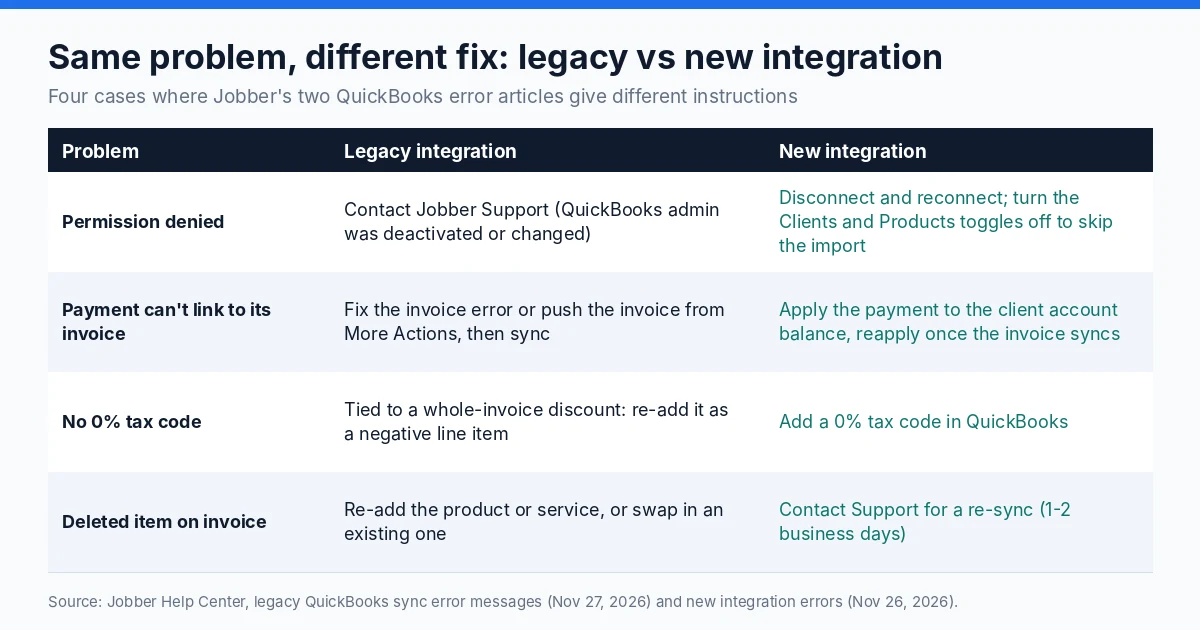
Reading the two articles side by side turns up four causes where Jobber gives different instructions. They are not errors in the help center; the integrations behave differently. They do mean an old forum answer can send you the wrong way.
| Problem | Legacy article says | New integration article says |
|---|---|---|
| Permission denied | The QuickBooks admin who connected Jobber was deactivated or changed; contact Support | Disconnect and reconnect, turning the Clients and Products and services toggles off to skip the import |
| Payment can’t link to its invoice | Fix the invoice’s own error, or push the invoice from its More Actions menu, then sync | Set the payment’s Applied to field to the client account balance, reapply after the invoice syncs, or ask Support to re-sync |
| No 0% tax code | “Non-taxable item on invoice, but no TaxCode with a rate of 0% was found in QuickBook” is tied to a whole-invoice discount; delete it and re-add it as a negative line item | “0% tax rate not found”: add a 0% tax code in QuickBooks |
| Deleted item on an invoice | Re-add the product or service, or swap in an existing one | Contact Support for a re-sync, which Jobber says takes 1 to 2 business days |
Payment and payout errors: the money side
Payment errors almost always point back to an invoice or client that didn’t sync, or to something edited in QuickBooks after the fact. The ones that need a QuickBooks change:
- Undeposited Funds. Both lists flag a missing account: legacy as the “undefined method” critical error, new as “Undeposited funds account not found”. Jobber’s fix is to create an account named “Undeposited Funds” in your Chart of Accounts. Jobber’s legacy article says the account was probably renamed or removed.
- “Operation failed with errors: Invalid Invoice ID” (legacy): the invoice was edited or deleted in QuickBooks. Delete the payment in Jobber, record it again from the client profile, then apply it in QuickBooks.
- “Payment method not found in QuickBooks Online” (new): create the method in QuickBooks under All Lists, then Payment Methods.
- Payouts already deposited. If someone matched the payments to a bank deposit by hand, Jobber says to revert the “Deposit to” account to Undeposited Funds or delete the manual deposit, then resync.
Two payout cases go to Support: payments that “have not been pushed to QuickBooks Online”, usually because the payout predates your sync settings or invoice numbers changed in QuickBooks, and the new integration’s “Tips not found” messages. The legacy article lists Jobber Support at 1-888-721-1115 or live chat. Timesheets also sync in the new integration; “Employee does not exist in QuickBooks” means you need an employee in QuickBooks whose name matches Jobber exactly.
A pre-sync checklist that prevents most of these
Every item below maps to at least one message in Jobber’s lists. Run it when you onboard a new office person or before your bookkeeper’s month-end close:
- Client display names stay under 25 characters, phone fields under 30, emails under 100 and addresses under 50 (legacy limits). Extra contacts go in notes or custom fields.
- No double-quote inch marks in client, product or service names.
- Tax rate names and percentages in Jobber match QuickBooks exactly, including any 0% code.
- No invoice totals at $0 or below, and no discount larger than the subtotal.
- Nobody deletes, merges or deactivates a synced customer or item in QuickBooks without checking Jobber first.
- The “Undeposited Funds” account exists and keeps that name.
- The QuickBooks user who authorized the connection stays active; if they leave, plan the reconnect.
- Payment methods used in Jobber exist in QuickBooks (new integration).
If sync trouble is part of why you are thinking about leaving Jobber, get your records out first: our guide to exporting clients and invoices from Jobber lists every export a move needs, and how Housecall Pro and Jobber compare covers the most common alternative. More field service guides are in our field service software section.
Sources (all read November 28, 2026): Jobber Help Center, QuickBooks Online sync error messages (legacy, updated Nov 27, 2026); Common QuickBooks sync errors, new integration (updated Nov 26, 2026); QuickBooks automated sales tax sync error (updated Nov 22, 2023); Migrate to the new QuickBooks integration (updated Nov 26, 2026).