How this page was made: researched from vendor pages, not hands-on tested. We read Jobber’s help articles on cancelling, closing an account, billing, add-ons and client exports, plus Sections 3, 14 and 18 of the Jobber terms. We have not cancelled a Jobber account ourselves, and each step links to the Jobber page it comes from. Checked 2026-11-25.
To cancel Jobber you need two things: an admin login, and the same place you used to subscribe. If you paid on Jobber.com, the cancel button is under the gear icon. If you subscribed in the Jobber mobile app, you cancel in the app and any refund goes through Apple or Google. The button is the easy part. Owners usually lose money or records in other ways: they miss the renewal window on an annual plan, forget an add-on, or notice too late that every client record locks on the last day. If price is why you are leaving, read our Jobber pricing breakdown first. If you are switching apps, our guide to exporting clients from Jobber covers the file side in detail.
How to cancel Jobber on Jobber.com
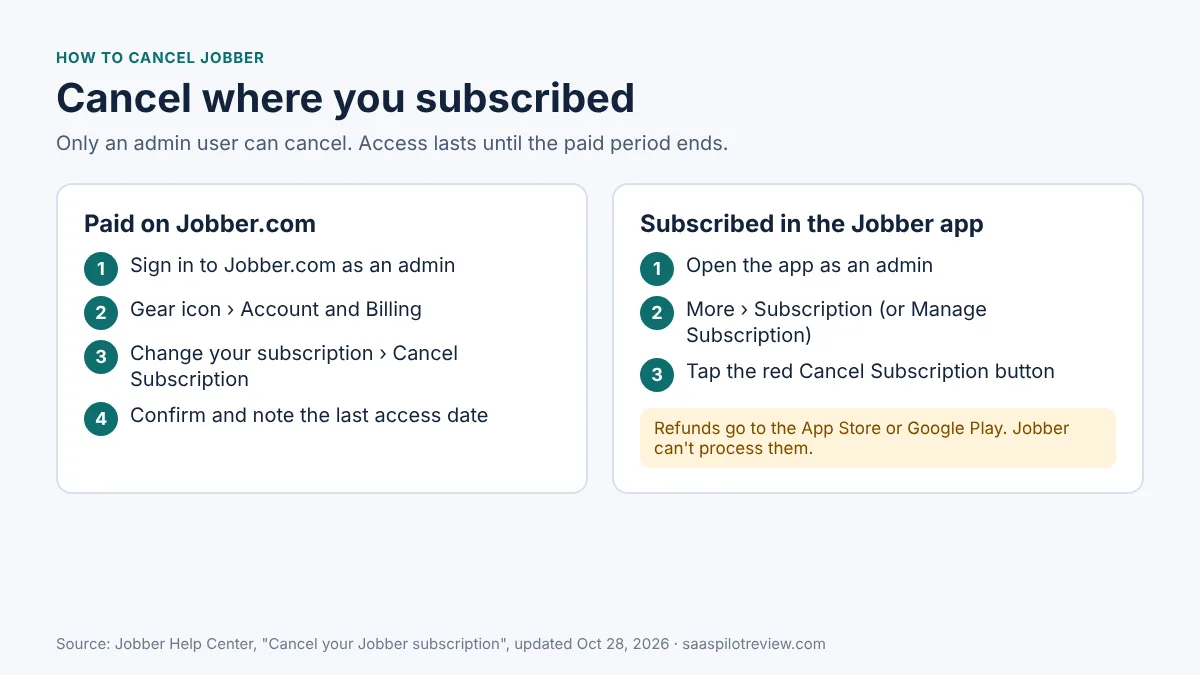
Only an admin user can cancel, according to Jobber’s cancel your Jobber subscription article. The steps on the web:
- Sign in to Jobber.com with an admin account.
- Click the gear icon, then Account and Billing.
- In the Change your subscription section, click Cancel Subscription.
- Confirm on the pop-ups and pick a reason from the dropdown.
- Jobber shows a confirmation with the date your plan was due to renew. That date is the last day you can open the account.
Nothing is deleted on the day you click. Jobber says you keep full access until the end of the current billing period. After that, the account stops renewing and you lose access to “clients, jobs, invoices, and any other information stored in Jobber.” The data is still there, but you cannot reach it until you subscribe again. Neither Jobber’s help pages nor its terms give a number of days for how long it is kept.
Subscribed in the Jobber app? Cancel there instead
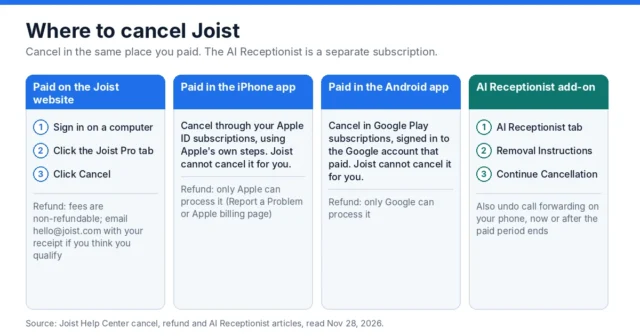
If you started your plan inside the Jobber iPhone or Android app, the Jobber.com button does not handle your billing. Apple or Google does. Jobber’s steps: log in to the app as an admin, tap More, then Subscription, then the red Cancel Subscription button. (The billing article calls the same screen Manage Subscription, so look for either label.) Access continues on the web and in the app until the next billing date shown on that screen.
Refunds work differently here. Jobber says refund requests for app subscriptions “must go directly to your app store” and that it cannot process them for you. Section 14 of the Jobber terms adds that app subscriptions renew for the same term as the original one unless the store’s own rules say otherwise. If you are not sure where you subscribed, check your Apple ID subscriptions or the Google Play subscriptions list before you open Jobber.
The date that decides what you pay
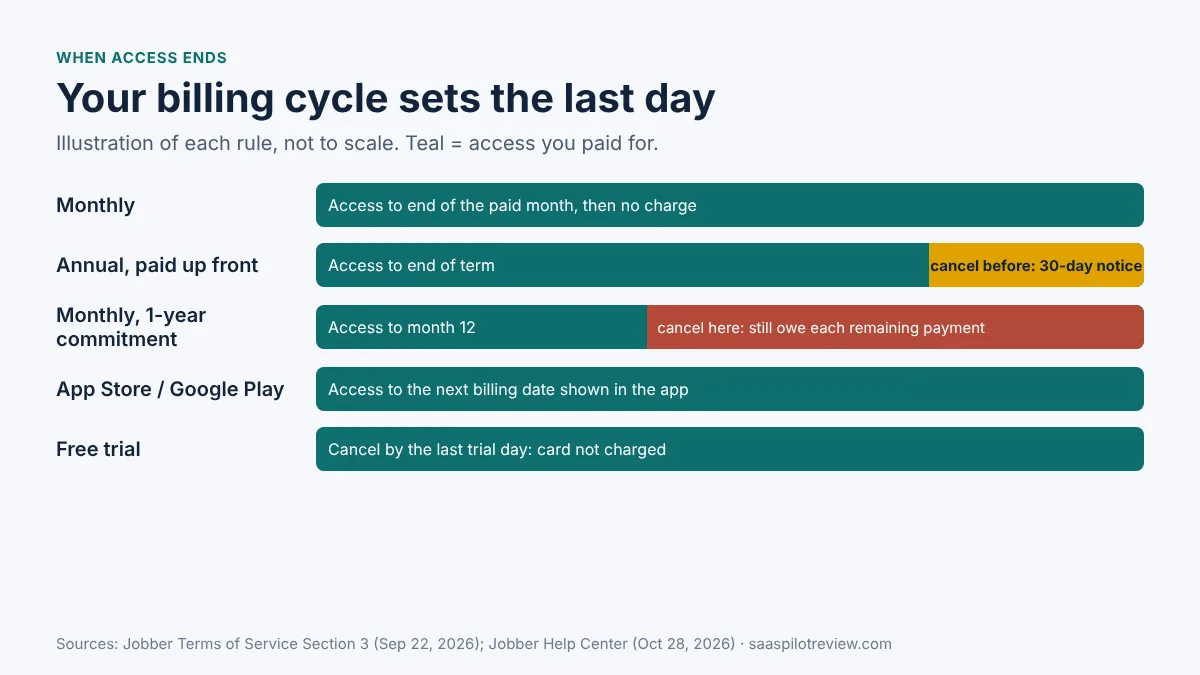
When you can stop paying depends on your billing cycle, not on the day you click cancel. Jobber offers three cycles on the web (monthly, annual paid up front, and “monthly, 1 year commitment”), and the terms treat each one differently. This table puts the rules from Section 3 of the terms and the help center side by side:
| How you pay | Cancel by | Access ends | What you still owe |
|---|---|---|---|
| Monthly (Jobber.com) | Before the next billing date | End of the month you already paid for | Nothing more; no refund for the rest of the month |
| Annual, paid up front | At least 30 days before the renewal date | End of the annual term | Nothing more; unused months are not refunded |
| Monthly, 1-year commitment | Any time (counts as a notice not to renew) | End of the 12-month term | Every remaining monthly payment in the term; no downgrade before it ends |
| Jobber app (App Store / Google Play) | Before the next billing date shown in the app | Next billing date | Store rules apply; refunds only through the store |
| Free trial | Up to and including the last trial day | When you cancel | Nothing; the card is not charged |
The annual row trips people up. The terms say an annual subscription must be cancelled “at least thirty (30) days” before it renews. Clicking cancel the week before renewal is too late. Put a reminder on your calendar 35 days before the date shown under Account and Billing. The 1-year commitment row is the other surprise: cancelling stops the plan from renewing, but you still owe every monthly payment until the 12 months are up.
Save these before your last day
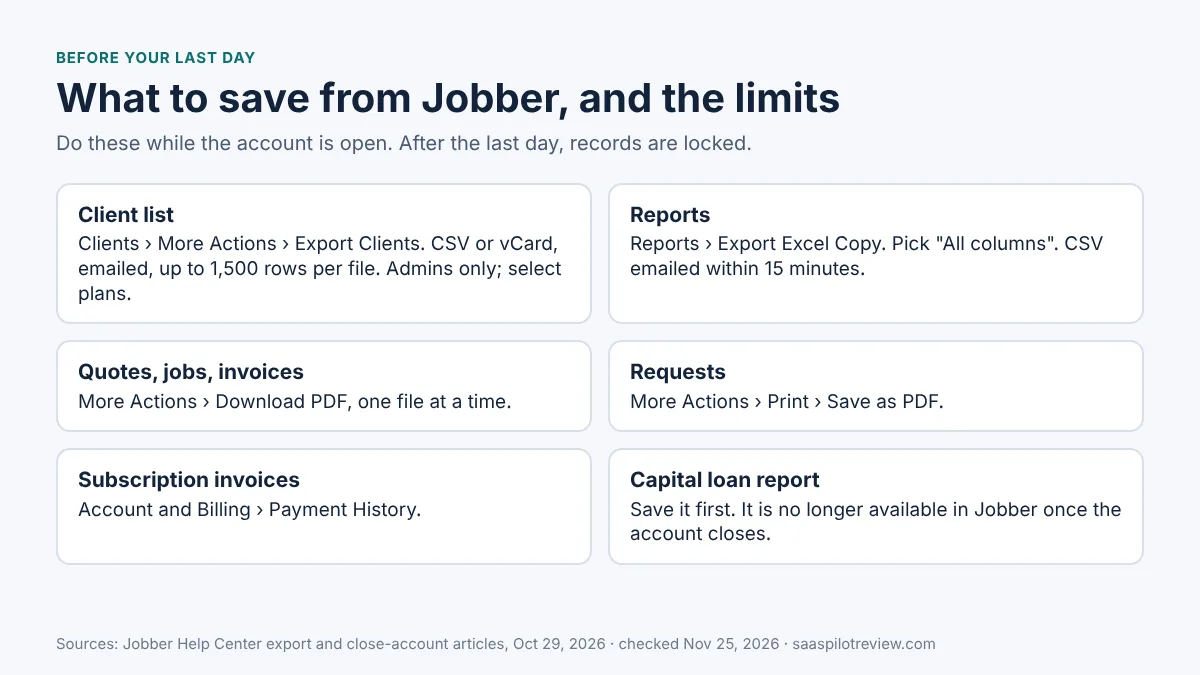
Do the downloads while the account is still open. Jobber’s close account article advises exporting reports you may need later, and the terms encourage keeping backups “at all times.” From the help center:
- Client list: Clients › More Actions › Export Clients, as CSV or vCard. Only admins can export, the file arrives by email, and each CSV holds up to 1,500 rows, so a larger list comes in several files. Jobber says client export is “available on select plans”. Check yours before the last week. Our full Jobber export guide maps the columns to other apps.
- Reports: Reports › pick a report and date range › Export Excel Copy. Choose “All columns” so hidden columns come along. Jobber emails the CSV within 15 minutes.
- Quotes, jobs and invoices as PDFs: open each one › More Actions › Download PDF. These download one at a time, so save the open and recent ones first.
- Requests: More Actions › Print › Save as PDF.
- Your own subscription invoices: Account and Billing › Payment History, useful for your bookkeeper.
Before you cancel, also send open invoices or collect on them. Once access ends, your clients cannot use the Client Hub. Jobber’s close account article says they will see a message telling them to contact you by the phone and email in your company settings, so make sure those are current.
Add-ons and Jobber Payments
Add-ons have their own remove button. Jobber’s add-on article lists Receptionist, Sales Pipeline and the Marketing Suite. To drop one, go to the gear icon › Account and Billing, find the add-on, select Remove, then Unsubscribe. Access lasts to the end of the billing period, and Jobber says the charges are non-refundable.
The article does not say whether add-ons stop by themselves when the main plan is cancelled. Remove each one yourself and check that the upcoming billing summary on the same page shows nothing left. If the AI Receptionist is the reason you are keeping Jobber, see our Jobber AI Receptionist pricing page before you drop it.
Jobber Payments is separate. The terms say Jobber may turn it on for you and that you can disable it in account settings. On closure, Jobber says it files 1099-K forms from the Jobber Payments data on record up to the closure date, and that cash and check payments are not included. If you used Stripe Capital through Jobber, its loan report disappears from Jobber when the account closes, so download it first.
Cancel, downgrade, pause or close for good?
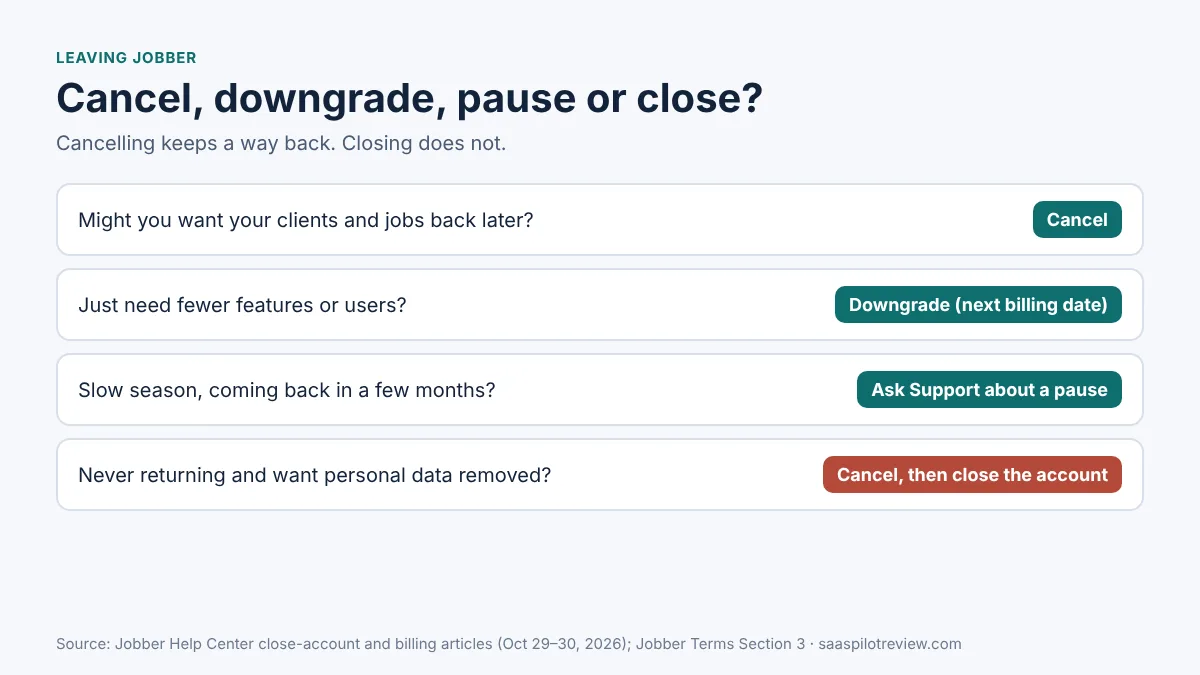
Cancelling is not the same as deleting. A cancelled account still exists, and you can reactivate it later with your data. Closing it removes it permanently. The choices side by side:
| Option | How | Your data | Best when |
|---|---|---|---|
| Cancel | Gear › Account and Billing › Cancel Subscription | Locked after the last day; restored if you resubscribe | You are switching apps or closing for the season |
| Downgrade | Account and Billing, or ask Support (Jobber’s two articles differ) | Kept; takes effect next billing date | You only need fewer features or users |
| Pause | Contact Support | Kept; access may be restricted | Slow season; ask about the fee first |
| Close permanently | Cancel first, then Close Account in the iOS app or email Jobber | Removed, “no longer be retrievable” | You will never come back and want personal data removed |
Two details on that table. Jobber’s articles disagree on downgrades: the cancel page says you can switch to a lower plan at any time under Account and Billing, while the billing and plan article says to contact Support. If the button is not there, use chat. On pausing, the cancel article only says to talk to Support, while the terms describe an “account hibernation” option for a nominal fee, so ask what it costs.
Closing is final. Jobber says an account “must already be canceled in order to be permanently closed,” only the account owner can close it, and you cannot close it while an ownership transfer is pending. On iOS: gear icon › Profile › Close Account, then type CLOSE to confirm. The account is removed when the subscription ends. If you come back, you start a new account from scratch.
Will Jobber refund you?
For Jobber.com subscriptions, usually not. Section 3 of the terms says fees are billed in advance and are non-refundable, with no refunds or credits for partial months, upgrades, downgrades or unused months. App subscriptions follow the App Store or Google Play rules, and Jobber sends you to the store. If a charge looks wrong, the terms give you 60 days to dispute it, so raise it with Support quickly instead of waiting for the next statement.
Where to go next
If you are moving to Housecall Pro, our Housecall Pro vs Jobber comparison covers plans and fit for small crews. If you later want to leave Housecall Pro, the steps are very different (a support chat and an owner phone call). See our Housecall Pro cancellation guide. For other options, start with the best field service software for small business or browse the field service software hub. How we research and test is explained on how we test.
Sources
Jobber Help Center: Cancel your Jobber subscription (updated Oct 28, 2026); How do I permanently close my account? (Oct 29, 2026); How to change your billing information and plan (Oct 30, 2026); Add-on features to your Jobber plan subscription (Aug 13, 2026); Export client information (Oct 29, 2026). Jobber Terms of Service, Sections 3, 14 and 18 (last updated Sep 22, 2026). All read Nov 25, 2026.