November 19, 2026 · What changed: On November 9, 2026, Search Engine Roundtable reported that a “Book online” button is showing up on some Google Business Profiles, including home service companies, without the owner adding a booking provider. Some of those buttons reportedly opened a Google error page. Google has not commented, so treat this as reported, not confirmed.
How this page was made: researched from Google Business Profile Help, the Jobber and Housecall Pro help centers, and the Search Engine Roundtable report, not hands-on tested. We did not change the booking link on a client profile for this article.
If you run a plumbing, HVAC, cleaning or lawn care company, search your business name on Google today and look for a Book online button on your profile. It may be new, and it may not go where you want. Reports from local SEO consultants say Google is putting the button on more profiles, sometimes pointing it at a plain contact page and sometimes at a page that fails to load. Below is a five-minute check, what to do with each kind of destination, and how to point your Google Business Profile booking link at the scheduling tool you already use. If you are deciding whether to take bookings straight from Google at all, our guide to Google AI Mode booking for home service jobs covers the related change from earlier this month.
What was reported on November 9
Barry Schwartz of Search Engine Roundtable reported on November 9, 2026 that Google “may automatically add booking links to some local business profile listings,” after a Book online button appeared on his own profile in Search and Maps. Brandon Schmidt, Joy Hawkins and Syed Amir said they had seen the same on more businesses, including a home care company and home service companies.
Three details from that report matter for a service business:
- The button may open a contact form, not a booking tool. Joy Hawkins noted that the profiles she saw were not connected to any scheduling software; the button went to the business’s contact form.
- Some buttons reportedly broke. When the link pointed to Google’s own reservation page, it showed a 500 error unless the business had a booking link or software set up. Barry clicked one later and reached the company’s scheduling page, so it may have been a temporary bug.
- A contact page link may now be enough to trigger the button. Syed Amir reported that adding a website’s contact page in the profile’s Booking link field now shows the Book online button, which used to need a Google booking partner.
None of this comes from Google. The report includes no statement from Google, and Google’s help pages, as of today, do not describe automatic booking buttons. What the help pages do say is that booking links “can automatically appear on your Business Profile through third-party partners,” which is one known way a button shows up that the owner never added.
Check your profile in five minutes
Do this on your phone, because that is where most homeowners will see the button:
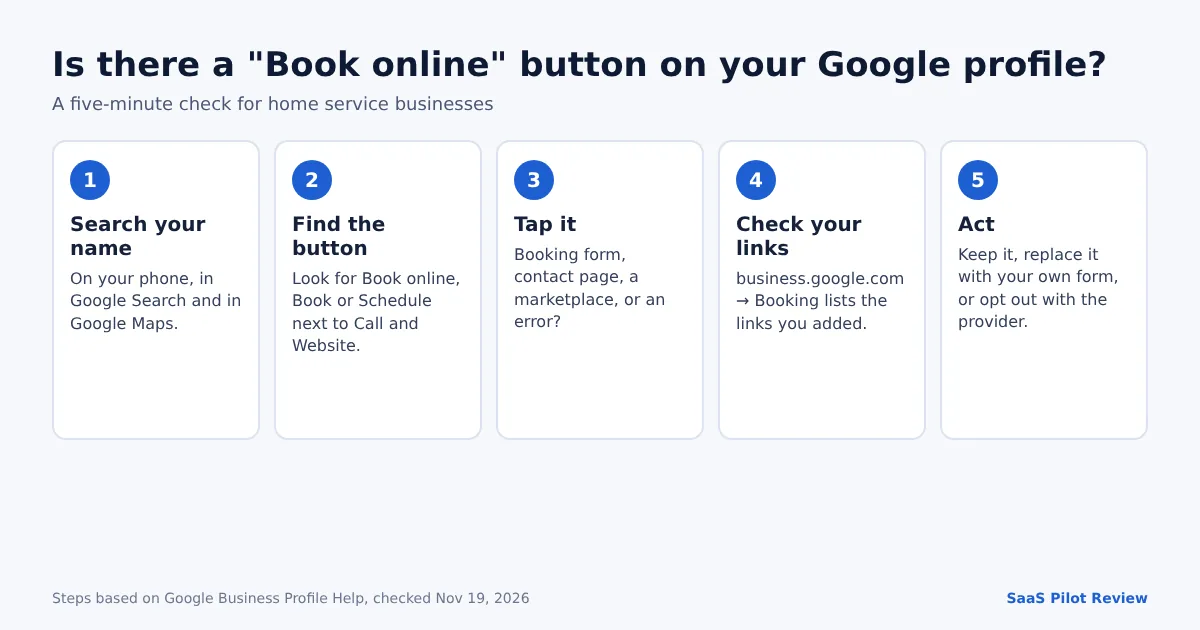
- Search your exact business name on Google, and also open it in Google Maps.
- Look for Book online, Book or Schedule next to Call, Directions and Website.
- Tap it. Note the page it opens: your own booking form, your contact page, a scheduling app, a lead marketplace, or an error.
- Sign in as the profile owner, open your profile at business.google.com and select Booking (in Maps: Edit profile, then the booking option). This lists the links you added yourself.
- If the button’s destination is not in that list, a third-party provider or Google placed it. Write down the provider name shown on the button or the booking page.
Check from a desktop too. In the profiles reported so far the button showed in both Search and Maps, but where a third party is involved the provider name is often easier to read on a large screen.
Where the button lands and what to do about it
The fix depends on the destination, not on the button itself. This is how we would handle each case for a home service company:
| Where the button goes | What it likely means | What to do |
|---|---|---|
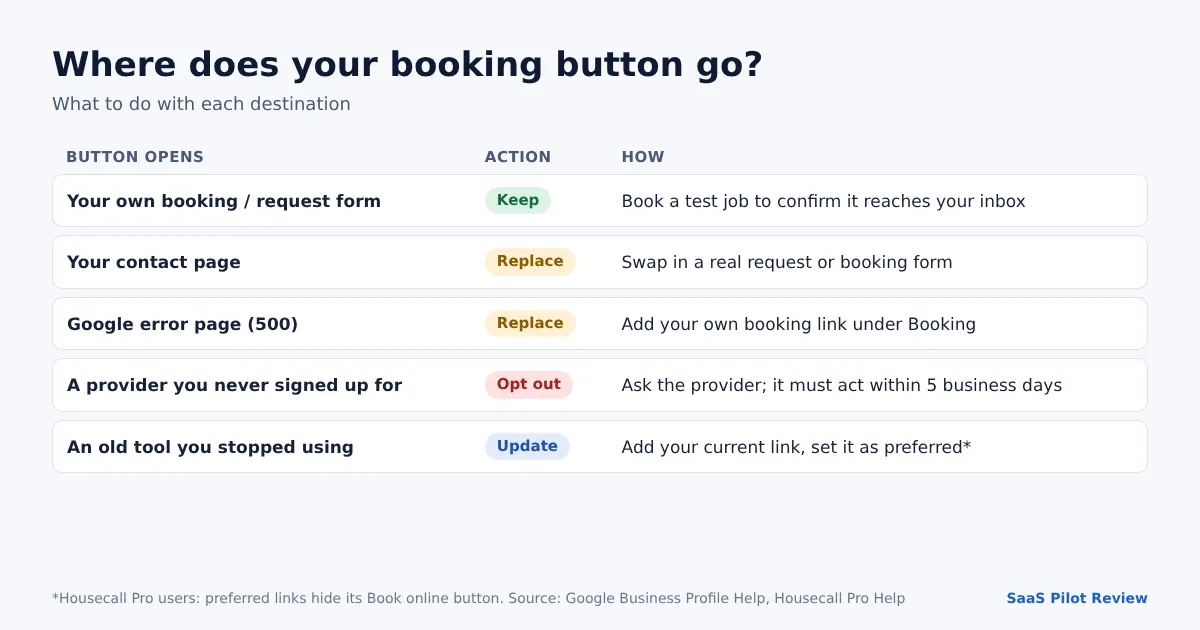
| Your own booking or request form (Jobber, Housecall Pro or similar) | Your software is connected, or you added the link | Keep it. Book a test job from your phone to confirm it reaches your inbox. |
| Your website’s contact page | A link you or your web person added, now shown as Book online (reported) | Fine for now, but replace it with a real request or booking form so the customer does not land on a generic page. |
| A Google error page (500) | Google’s reservation page with no provider behind it (reported) | Add your own booking link so the button has a working destination. |
| A lead marketplace or booking service you did not sign up for | A third-party partner added it | Opt out through that provider. Google says it cannot be deleted from your profile settings. |
| An old scheduling tool you stopped paying for | A link you added years ago | Replace it with your current tool and set that one as the preferred link. |
Third-party links have happened before. In July 2024, Search Engine Roundtable reported that Thumbtack had added its booking option to Business Profiles on an opt-out basis, so some home service pros found a Thumbtack button they never asked for. Google’s process for this case is set out below.
Add or change your Google Business Profile booking link
Google’s help page on local business links gives these steps for adding a booking or appointment link yourself:
- Go to your Business Profile at business.google.com.
- In Google Search, select Booking. In Google Maps, select Edit profile, then the transaction type.
- Select Add link, or Add another link if one is already there.
- Paste the URL of your booking or request form.
- Select Save.
Google allows up to 10 links per category (booking, reservations, orders), so the button can end up with several destinations. If that happens, set the one you want customers to use first: select Booking, then Set preferred link, pick your link and save. It then shows at the top as “Business preferred.” These links cannot be changed through the Business Profile API or a spreadsheet upload, so an agency managing many locations has to do it profile by profile.
For a link a third party added, the same help page says you “cannot manually delete third-party booking or reservation providers directly from your Business Profile settings.” Contact the provider through its opt-out link, support form or account portal; providers must process the request within 5 business days. If the link is still there after that, report it through Google’s business contact form.
You need edit access to the profile for any of this. If your profile is stuck in verification, sort that out first; our guide to fixing a failed Google Business Profile video verification covers the most common blocks.
Point the button at Jobber or Housecall Pro
If you already schedule jobs in Jobber or Housecall Pro, connect the profile from inside that app rather than pasting a link by hand. The two work differently:
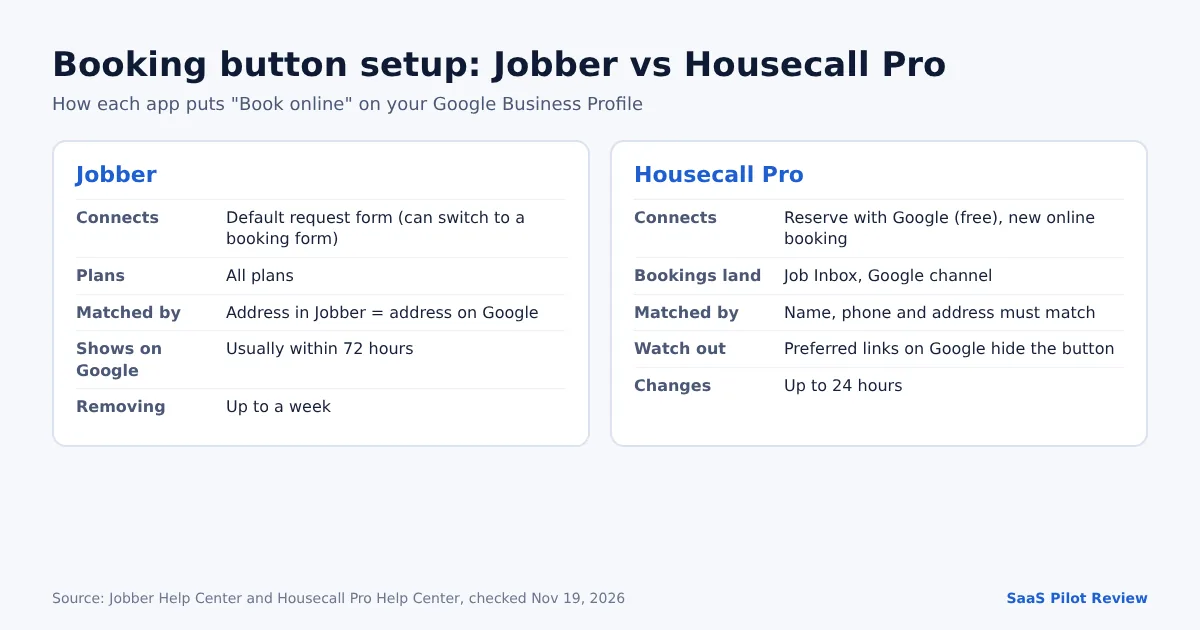
Jobber links your default request form to your profile so a Book online button appears, according to its help article on connecting Google Business Profile. Connecting is available on all plans. Jobber matches your listing by address, so the address in Jobber must match the one on Google. You can swap the request form for a booking form under Settings, Requests and Booking, open the booking form, then the Google Business Profile section, and select Use This Form. Only one form can be connected at a time. Jobber says it usually shows on Google within 72 hours, and removing it can take up to a week.
Housecall Pro uses Reserve with Google. Its help article says the service is free, needs the new version of Housecall Pro online booking, and needs your business name, phone and address to match between Housecall Pro and Google. Bookings arrive as leads in the Google channel of your Job Inbox. One catch the article flags: preferred links set on your Google profile “will override the Book Online button and will prevent it from appearing,” so Housecall Pro users should skip the preferred-link step above. Once they are removed, the button should appear within 24 hours. You can switch it off under Booking, then Reserve with Google.
Choosing between the two apps for other reasons? See Housecall Pro vs Jobber.
Should a service business take bookings straight from Google?
A booking button suits jobs with a fixed scope and price: a furnace tune-up, a gutter clean, a standard house clean. It works badly for jobs you have to see first, like a leak behind a wall or a remodel quote, because the customer books a slot you may not be able to keep. For those, point the button at a request form that collects the address, photos and a short description, and answer it fast. Our breakdown of request forms, fixed-price booking and instant quotes walks through the same choice for a pressure washing company, and the logic carries over to most trades.
Two more checks before you leave the button live. Make sure your booking form only offers days and areas you actually serve, since a booking from outside your service area costs a wasted call. And if you also show WhatsApp or Messenger on your profile, decide which channel your office answers fastest; our guide to WhatsApp and Messenger buttons on Business Profiles covers that setup.
What we are watching next
We will update this page if Google confirms the change, publishes help text on automatic booking buttons, or says which categories get them. Until then, the safe move is the same either way: know where your button goes, and make sure it lands on a form your office checks every day. For more Google Business Profile changes as they happen, see our local SEO guides.