How this page was made: researched from Housecall Pro’s help center and terms of service, not hands-on tested. We have not cancelled a Housecall Pro account ourselves; every step below links to the Housecall Pro page that describes it. Checked 2026-11-15.
There is no cancel button in Housecall Pro. You ask Support in the in-app chat, and the account owner then has to take a phone call from the billing team before the cancellation goes through. That call is the easy part. The parts that cost people later are the customer list they forgot to download, the business phone number they could not take with them, and a renewal that billed before the call happened. If you are leaving because of price, check our Housecall Pro pricing breakdown first; a plan change may be cheaper than a move.
Can you cancel Housecall Pro online?
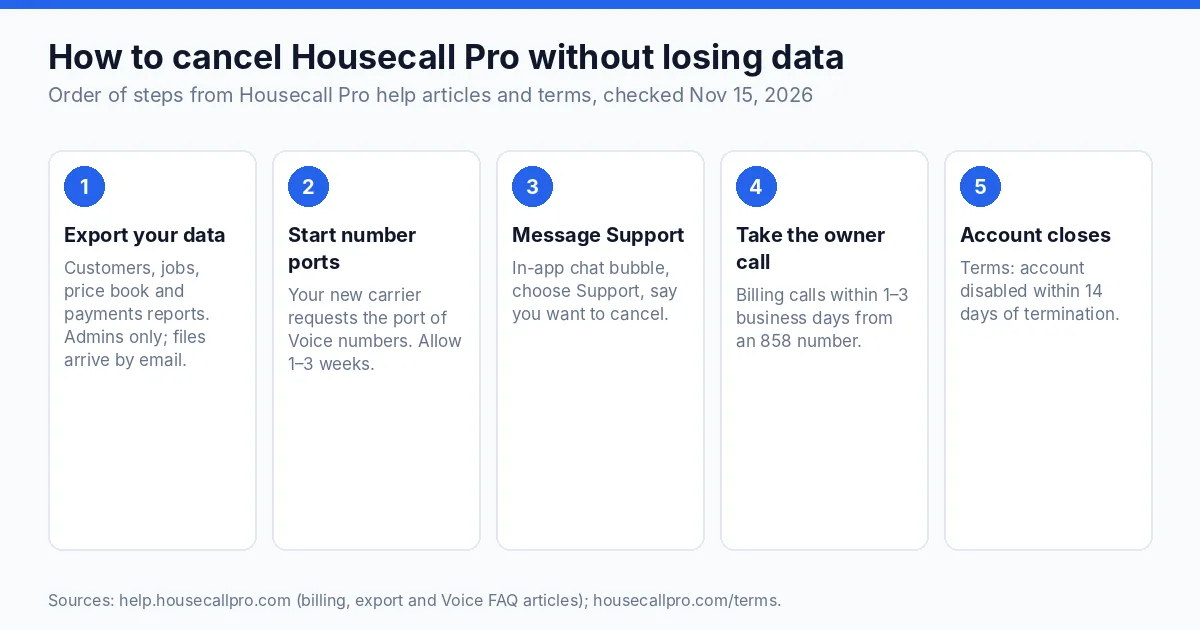
Not by yourself. The Housecall Pro billing and account management article tells you to start a chat with Support and say you want to cancel. From there:
- Open the blue chat bubble in Housecall Pro, choose Support and send a message saying you want to cancel your account.
- The billing team “will reach out within 1-3 business days”. Watch for calls from numbers with the 858 area code.
- Housecall Pro says it “cannot fully process your cancellation or pause billing until a team member has spoken with the account owner over the phone.” If the owner is on a roof all week, set a time for that call.
- You can also call Support at (858) 842-5746, per the same article. The terms of service list cancellations@housecallpro.com for written cancellation requests; keep a copy of what you send.
Some guides describe a “Cancel Plan” button under Settings > Billing. Housecall Pro’s own billing article does not mention one, so plan on the chat and phone route.
Still on a free trial? If you never added a payment method, the trial “will automatically close after 14 days” and you do not need to do anything. If you added a card, contact Support like a paying account.
Export everything before you ask
Do the exports first, while you still have full access. Housecall Pro’s terms say customer data you entered “shall remain the property of the Pro”, but they also make you “solely responsible for … compiling and retaining permanent records” of your transactions. In plain terms: if you need it, download it.
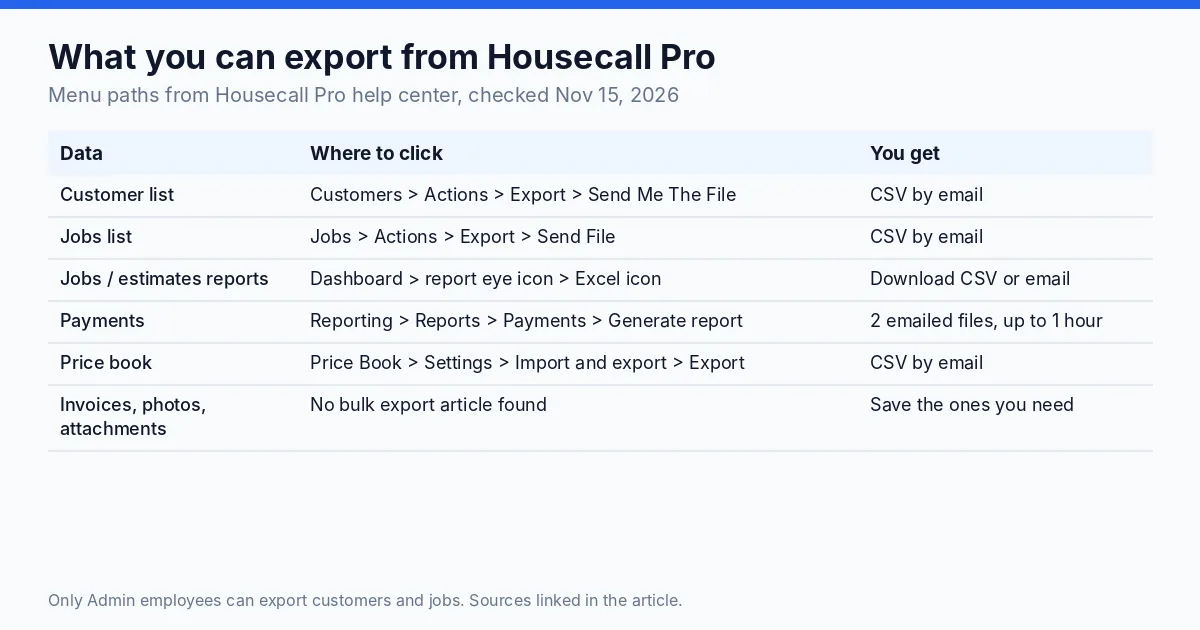
| Data | Menu path | What arrives | Source |
|---|---|---|---|
| Customer list | Customers > Actions > Export > confirm email > Send Me The File | CSV emailed from notifications@housecallpro.com | Export customer list |
| Jobs list | Jobs > Actions > Export > Send File | CSV by email | Import/export jobs and customers |
| Job and estimate reports | Dashboard > eye icon on a report > set dates > Excel icon | Download CSV or send by email | Dashboard reports |
| Payments | Reporting > Reports > Payments > date range > Generate report | A summary file and a payment details file (with fees) by email, can take up to an hour | Payments export |
| Price book | Price Book > Settings > Import and export services (or materials) > Export | CSV by email | Export your price book |
Three practical notes:
- Use an Admin login. Housecall Pro says only employees listed as Admins can export the customer and jobs lists.
- Pull payments for the full tax year. The payment details file includes processing fees, which your bookkeeper will want for the year-end. Our guide to card processing fees in Housecall Pro, Jobber and ServiceTitan explains what those fee columns represent.
- Invoices, job photos and attachments. We found no Housecall Pro article for a bulk export of invoice PDFs or photos. Download the ones you may need for warranty claims or disputes one by one, or ask Support during the cancellation call.
Once the files are in, open the customer CSV and check that phone numbers, addresses and notes came through. The next app will import from this file, so fix problems now. Moving to Jobber? Its import steps are covered in exporting and moving clients between Jobber and other apps, which also works in reverse as a checklist of the fields to keep.
Keep your business phone number
This is the step most cancellation guides skip, and the one with a hard deadline. Housecall Pro has more than one kind of number, and each is treated differently.
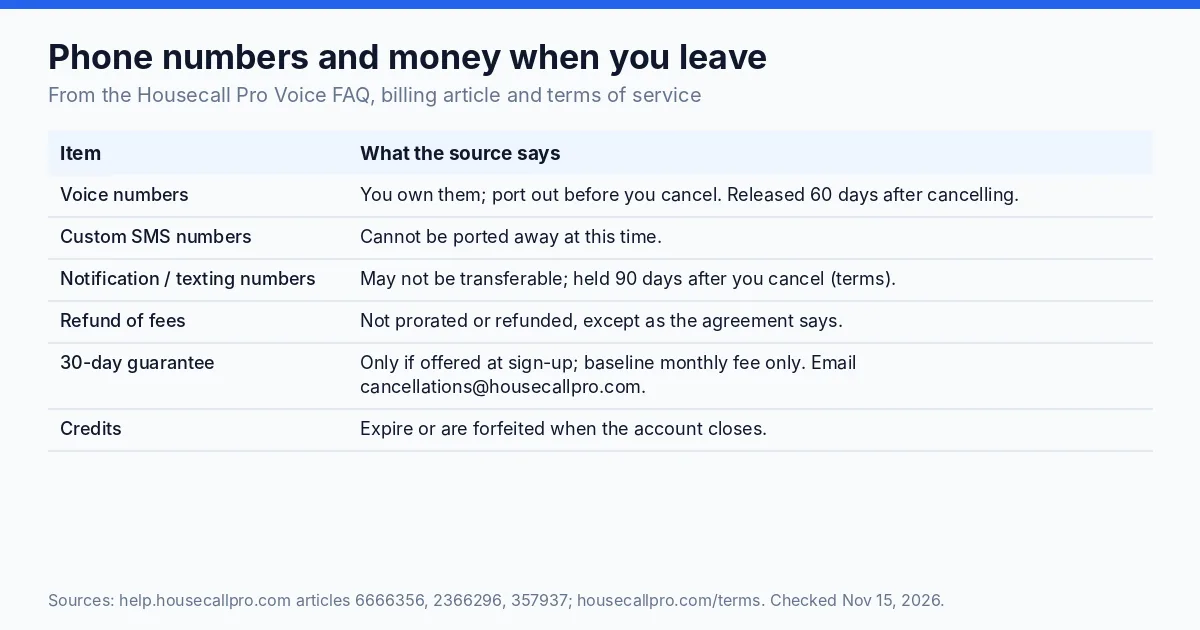
- Voice numbers: the Voice FAQ says “You own those numbers … if you want to port them out before you cancel, you can.” The port “must be initiated by your new carrier” and typically takes 1–3 weeks. After you cancel, Housecall Pro will “release them after 60 days.”
- Custom SMS numbers: the same FAQ says they “cannot be ported away at this time.” Tell regular customers your texting number is changing.
- Notification numbers: the terms say these “may not be transferable” and are held for 90 days after you cancel.
The safe order: open the account with your new phone provider, start the port, and only ask for cancellation once the port has completed. If the number is on your trucks, your Google Business Profile and your yard signs, losing it costs more than one more month of subscription.
What you still pay, and when a refund is possible
Expect to pay for the period you are in. The terms of service say:
- “All subscriptions automatically renew, if not terminated prior to such auto-renewal.” Start the process several business days before your renewal date, because the owner call can take up to three business days.
- “Subscription fees will not be prorated or refunded, except as expressly set forth in this Agreement.” Cancelling mid-month or mid-year does not return the unused part.
- If you terminate, “your account will be disabled within 14 days.”
- Credits “will expire or be forfeited upon termination or closure of your account.”
The exception is the money-back guarantee. The billing article says Housecall Pro “offers a money-back guarantee within the first 30 days of your subscription”, and refund requests go to cancellations@housecallpro.com. Its guarantee article narrows that: it applies only if you were offered it at sign-up, Housecall Pro refunds the monthly charge “in some cases”, and it covers only the baseline monthly subscription fee, not setup fees, postcards or chargebacks. If you are inside the first 30 days, say so in the first chat message.
A one-week plan for a small crew
For a 2–6 person plumbing, HVAC or cleaning company switching mid-season, this sequence keeps the phones and the books running:
- Day 1: set up the new app’s trial. Export customers, jobs, price book and a full-year payments report from Housecall Pro.
- Day 1–2: import customers into the new app and spot-check 10 records. Start the number port with the new phone provider.
- Day 2–5: schedule new jobs in the new app only. Leave Housecall Pro open for open invoices and recurring service plans.
- When the port completes and open invoices are paid: message Support to cancel, take the owner call, and save the confirmation.
- After cancellation: update the phone number and booking link on your Google Business Profile and website if anything changed.
Where to go next
If Jobber is the likely replacement, compare it feature by feature in Housecall Pro vs Jobber. Crews that want flexible quoting often look at FieldPulse as a Housecall Pro alternative. For the full shortlist by crew size, see our best field service software for small businesses and the field service software hub. How we research and when we test is explained on how we test.