If you run Google Local Services Ads, the place you check your calls is changing. Google is moving LSA campaigns into Google Ads as Performance Max campaigns with pay-per-lead goals, and the old LSA dashboard goes away for each account once it migrates. You still pay per lead, not per click, but the screens, the budget settings and the reports you used to read are different.
This guide covers what to save before your account moves, where call leads show up afterward, and how to keep a record of every call that does not depend on Google’s own numbers. If you are still deciding how calls get answered at all, start with our missed-call text back setup guide, because under the new rules a missed call can cost you the same as an answered one.
How this guide was made: it is a research guide, not a hands-on test. We read Google’s help pages on the LSA move and on pay-per-lead leads, plus the CallRail pricing page, on October 17, 2026, and linked each one. We have not run a migrated LSA account ourselves. Prices checked October 17, 2026.
What actually changes for LSA calls
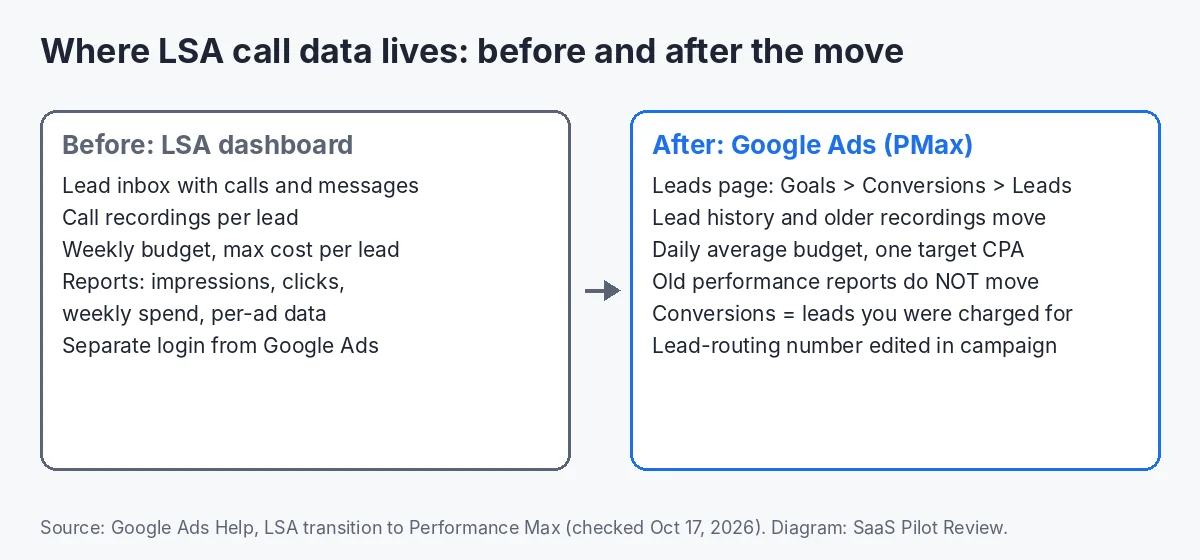
The short version: your leads and older call recordings move with you, your old performance reports do not, and the number Google calls “Conversions” is the count of leads you were charged for. Here is the change line by line, from Google’s LSA transition help page and its page on how leads work in pay-per-lead Performance Max.
| Item | Old LSA dashboard | After the move to Google Ads |
|---|---|---|
| Where calls show up | LSA lead inbox | Leads page: Goals > Conversions > Leads |
| Lead history and older call recordings | In the LSA dashboard | Transfer automatically |
| Performance reports (impressions, clicks, weekly spend, ad-level data) | In the LSA dashboard | Not migrated; Google says to screenshot them if you need them now |
| Budget | Weekly | Daily average (weekly budget divided by 7); monthly spend capped at the daily average times 30.4 |
| Bidding | Manual max cost per lead, or target CPA per job type | Manual bidding and per-job-type target CPA removed; one campaign-level target CPA |
| Phone number calls route to | Set in LSA | Editable in the campaign, in real time |
| Name, address, hours | Managed in LSA | Synced one way from your Google Business Profile |
Timing depends on your account. Google lists a first group of select U.S. home and storefront service advertisers from August 2026, a broader group in late 2026 that includes service-area businesses without a storefront and accounts with custom bidding or booking setups, and non-U.S. accounts in 2027. Account admins get an email 14 days before their migration and a reminder 7 days before, and Google asks you to allow up to two weeks for the move to finish.
Step 1: Save your numbers before migration day
Do this as soon as the 14-day email lands. Once the account moves, logging into the old dashboard sends you to Google Ads, and the old reports are not there. Google says download links for those reports will appear on a redirection page later, but it does not give a date.
- Take screenshots of the reports for the longest date range the dashboard allows: leads, spend and cost per lead, split by job type if you run more than one.
- Write down your current bid settings. Manual max cost per lead and per-job-type targets are removed on migration day, so this is the only record of what you were paying for.
- Note the phone number your leads ring to. You will check it again on migration day.
- Write down your booked-job rate from your own records, if you keep one: out of last month’s LSA calls, how many became a booked job. This is the baseline you will compare against later.
You do not need to export the leads themselves. Google says contact details, message history and older call recordings carry over on their own.
Step 2: Learn how the Leads page counts a call
The Leads page replaces the LSA inbox. Each lead shows its type (call, message or booking), a charge status, recordings where they are available, and a short feedback form. The rules that decide whether a call costs you money are worth knowing by heart:
- Answered calls are charged based on the conversation, not ring time. Calling the customer back and talking to them also counts.
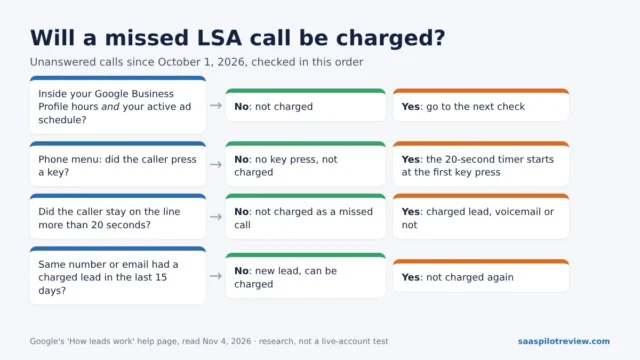
- Missed calls during your opening hours are charged if the caller stays on the line for more than 20 seconds. Opening hours come from your Google Business Profile, so wrong hours there mean charges you did not expect.
- Voicemail greetings count as a connected call. If the caller listens for more than 20 seconds, it is charged whether or not they leave a message.
- Phone menus: if the caller hangs up before pressing a key, there is no charge. The 20-second clock starts when they press it.
- Repeat callers from the same number are not a new lead if there was contact within 15 days. After 15 days with no contact, the next call is a new chargeable lead.
Each lead ends up as Charged, Not charged, In review or Credited. Google reviews lead quality over 30 days and applies credits automatically for leads it judges poor quality, duplicate or invalid. The help page does not describe a manual dispute button, so the feedback form is how you tell Google a lead was junk.
One limit to know: Google says call recordings and lead credits are not available in the U.S. for health care verticals or tax specialists.
Step 3: Point the lead-routing number at a tracking number you own
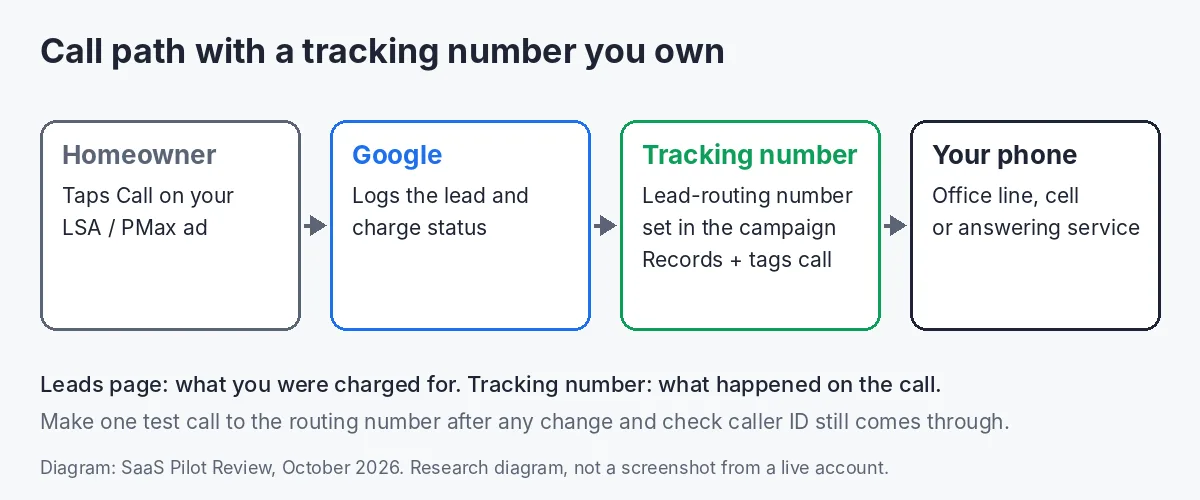
The Leads page tells you what Google charged for. It does not tell you whether the caller booked, what the job was worth, or how the call went if Google has no recording for your category. For that you need a record outside Google, and the simplest one is a call tracking number. Calls from your free listing are a separate problem, since Google removed Business Profile call history in 2024; our guide on how to track Google Business Profile calls covers that side.
Google’s migration page says you can edit the phone number that call and message leads route to, inside the campaign. Set that number to a dedicated tracking number that forwards to your normal line. Every LSA call then lands in your call tracking tool with a recording, the caller’s number and a place to tag the outcome. If your team works leads in a CRM, our guide on how to push LSA leads into GoHighLevel covers calls, message leads and bookings.
What it costs, from the vendor pages on October 17, 2026:
| Option | What you get | Price (checked Oct 17, 2026) |
|---|---|---|
| Google Ads Leads page | Lead list, charge status, recordings where available, feedback form | No separate fee; you pay per charged lead |
| CallRail Lead Tracking | 5 local numbers and 250 local minutes; 14-day free trial | $50/month; extra local numbers $3 each |
| A spreadsheet | Manual log copied from the Leads page each week | Free, but no recordings outside Google |
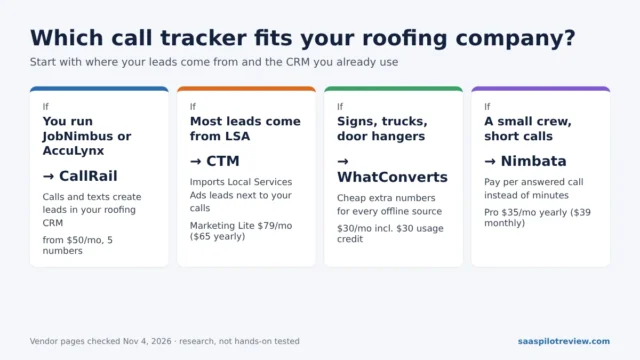
A small shop that only needs one LSA number fits inside the CallRail base plan. If your LSA calls run long, check the per-minute overage on the CallRail page before you commit; it is not the same in every table on that page. If you are still choosing a call tracking tool, our Nimbata vs CallRail comparison prices both for a small shop. Agencies running LSA for several clients can compare client accounts in CallTrackingMetrics vs CallRail.
Three things to check after you switch the number:
- Make a test call to the tracking number and confirm it rings through and shows the caller’s number, not the tracking number.
- Leave your Google Business Profile phone number alone. Google syncs name, address and hours from the profile; the lead-routing number is a campaign setting, so you can change it without touching the profile.
- Keep the tracking number for LSA only. If the same number also sits on your website or trucks, you cannot tell which calls came from the ad.
Step 4: Tag every call and compare once a week
Lead volume on its own tells you little now, because Google’s Conversions column is simply the count of charged leads. What matters is how many charged leads turned into booked work. A weekly 15-minute check does the job.

- Pull last week’s leads from the Leads page with their charge status.
- Match each one to the call in your tracking tool (or your phone log) by caller number and time.
- Tag the outcome: booked, quoted, spam, wrong number, out of area, or missed with no callback.
- Look at two gaps. Charged leads tagged spam or wrong number: leave feedback on each in the Leads page. Charged leads tagged missed: that is money spent on a call nobody took.
- Compare your booked rate with the baseline you saved in Step 1. A drop after migration is the number to act on, not the lead count.
Step 5: Stop paying for calls nobody answers
With missed calls billed after 20 seconds and voicemail greetings counted as connected calls, an unanswered phone costs more than it did. The fixes are the same ones we cover elsewhere:
- Send an automatic text to missed callers so the lead you paid for still hears from you. The setup guide linked above covers the tools; roofers can use the roofing version with storm-week templates.
- If missed calls are a daily problem, compare an AI receptionist and a live answering service before you raise your LSA budget.
- Check that your Google Business Profile hours match the hours someone actually answers the phone.
What most guides leave out
Most write-ups about the LSA move cover budgets and bidding. Two gaps matter more for a small service business:
- Google’s pages do not say how to send booked-job results back. Neither help page we read explains offline conversion imports for pay-per-lead Performance Max. Until Google documents it, keep your own booked-job log rather than assuming the campaign learns which calls became jobs.
- Your own record outlives the dashboard. The LSA move already wiped old performance reports from view. A tracking number and a weekly sheet you own are not affected by the next platform change.
More guides on measuring calls and leads are in our call tracking and lead gen hub. Read how we research and test for how guides like this one are put together.